Apps with External Users
❌ What cannot migrate today? (Federated users)
Applications dependent on Client Federation are currently NOT eligible to migrate.
The Client Federation migration effort has its own dedicated workstream within IDaaS. Stay tuned for updates.
✅ What can migrate today? (Non-Federated users)
External User Types
In many cases, ensuring a seamless experience for external end users requires understanding their current disposition in GUM, so as to anticipate their future disposition in Entra ID. The section below describes the different types of external users in each platform:
External User Types (GUM)
Federated Users
Federated users are external users whose organizations have an active federation setup with Forgerock.
- These users authenticate directly through their respective client IDPs.
- Currently, there are approximately 380 active federated clients.
We are in the process of transitioning all active federated clients to Microsoft Entra ID. During this migration, depending on their specific requirements and security posture, clients will adopt either:
- B2B collaboration (become B2B Guest Users in Entra ID), or
- Direct Federation (become Federated Guest Users in Entra ID)
The user experience for both B2B and Direct Federation users can be reviewed later in this article.
Unlike PwCID, Entra ID requires all external federated users to be registered as guest users. Please follow the official Microsoft guidance to register guest accounts directly in Entra ID.
Non-Federated Users
Non-federated users make up the majority of the external users today in ForgeRock. These users are external users who register in GUM without an active federation setup. These users authenticate using a PwC-managed username and password.
As we transition to Entra ID, non-federated users will either:
- Become B2B Guest Users / adopt B2B collaboration (if their organization also uses Entra ID), or
- Be registered as Individual Guest Accounts / use EOTP (Email One-Time Passcode) for authentication.
The user experience for both B2B and EOTP users can be reviewed later in this article.
Currently, application teams can continue using the GUM portal for self-service user registration. At this time, Entra ID does not provide an out-of-the-box (OOB) self-registration feature.
More information regarding the future GUM portal replacement will be coming soon.
External User Types (Entra ID)
External users fall into the three distinct categories listed below. Once invited to the PwC Entra tenant and granted application access, the external user's type will dictate the authentication method they follow.
Business-to-Business (B2B) Guest Users
- 🔎 Definition: External users with their own Entra tenants.
- 🔐 Authentication: is completed on their own tenant.
- 👤 User Experience: Learn More
Federated Guest Users
- 🔎 Definition: External users with federated domains using a non-Entra Identity Provider (IdP) service (e.g., Active Directory Federated Services/Web Application Firewall [ADFS/WAP], Okta, PingFederate)
- 🔐 Authentication: handled by their respective IdPs.
- 👤 User Experience: Learn More
noteUnlike Forgerock OpenAM, Entra ID requires guest accounts to be registered for direct federation or B2B to work. Client guest users are required to redeem the B2B guest invitation to gain access to the application.
- Users can follow this Microsoft guide or use this direct link to redeem their invitation.
- Please follow the guidance provided later in this article for external user registration.
Individual Guest Accounts
- 🔎 Definition: Accounts which do not have Entra ID tenants, nor do they support direct federation (e.g., Gmail or Yahoo users)
- 🔐 Authentication: PwC Entra ID will email a One-Time Passcode (EOTP) to the user, who then provides it to complete authentication.
- 👤 User Experience: Learn More
MFA Considerations
PwC recommends using MFA for guest accounts and thus reserves the right to apply additional policies/controls as needed.
B2B users' authentication is performed in their home tenant. However, if, for example - in the case of federated and individual guest accounts - the user's home tenant is not enforcing MFA, PwC can apply a Conditional Access Policy (CAP) in the PwC Entra tenant to ensure MFA remains part of the user's authentication experience.
Unique Identifier Considerations
for applications with External users
Moving Off of PwC PPI
As PwC moves to Identity as a Service (IdaaS) on Entra ID, some applications may need to change the unique identifier being used for users in their application.
External User Management and Lifecycle Guidance
External User Self-Registration
Guidance to register various types of external users including Bulk registration for external/guest accounts
App teams must keep using https://login.pwc.com/identity/register to register external accounts.
After registration the user is created in both the ForgeRock Directory and in Entra as a Guest account. Additional guidance will be provided for future GUM Self-service portal replacement.
External User Invite Process
Currently every employee in PwC can create external users. Within Entra ID, Member users and users assigned to specific admin roles can invite guest users including guests with member permission. PwC users are already using native Entra ID functionality to create external/guest users in Entra ID.
Guest User Invitations: Multi-Language Support
Entra ID enables sending guest user invitations in multiple languages using the Microsoft Graph API, allowing customization beyond the default English invite emails sent via the portal.
Entra ID External / Guest Account Lifecycle
Information around external/guest account lifecycle can be found here.
External User Group Management
Group Management / Creation in Entra ID
For user group management / creation on Entra ID, please refer to this guidance.
Group Migration from ForgeRock to Entra ID
For guidance on group migration from ForgeRock to Entra ID, please refer to this guidance
External User Experience
The table below outlines the external user experiences and prompts users may encounter while trying to authenticate with an application that has transitioned from PwC ID (ForgeRock) to Entra ID.
B2B Guest Users
Entra ID as home IDP
| Authentication Process | User Experience |
|---|---|
| Users whose home identity provider is Microsoft Entra ID will begin the sign-in process by entering their email address on the PwC application's login screen. | PwC Login Page: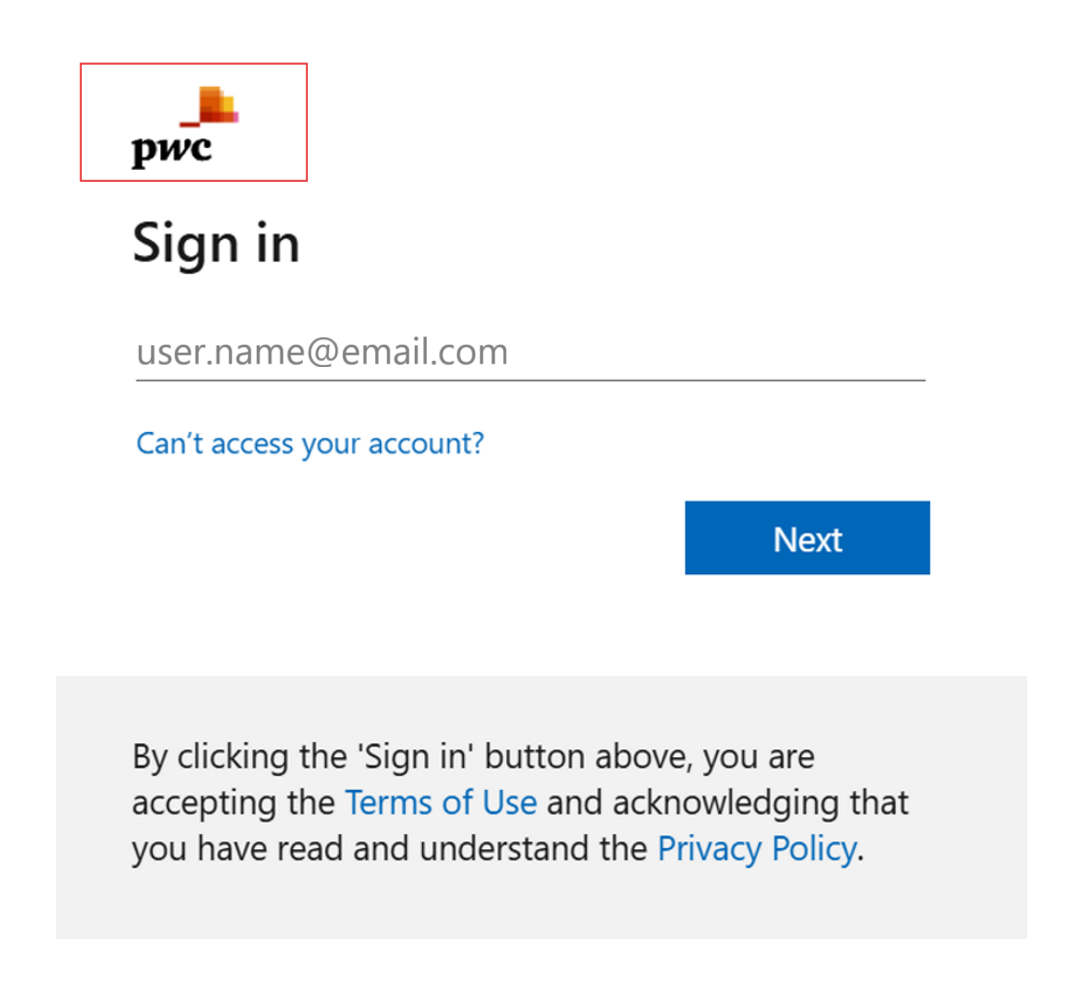 |
| Microsoft Entra ID identifies the user's home tenant and automatically redirects them to their organization's Entra ID sign-in page. | Redirects to B2B users Entra home IDP login page: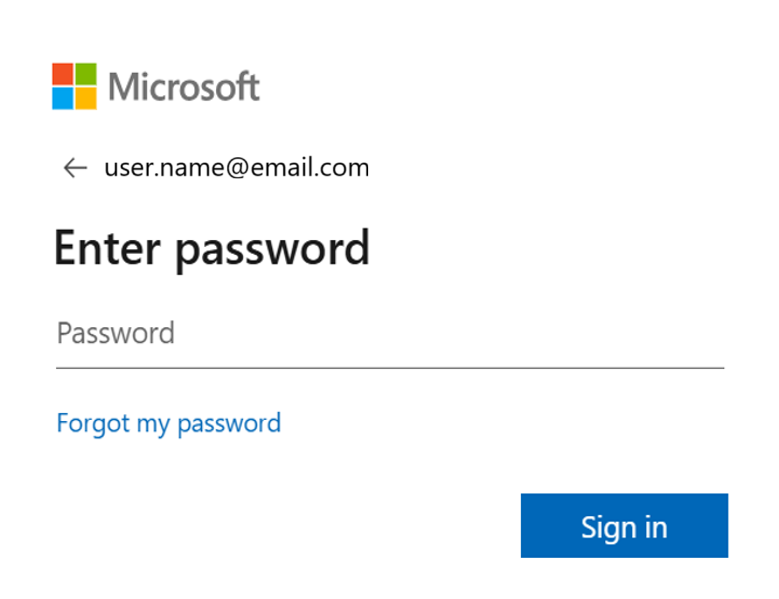 |
- If the user has an active session in their browser, they will be seamlessly authenticated without needing to re-enter credentials
- If no session is active, they will be prompted to sign in using the authentication methods configured by their organization. These may include password-based login and/or multi-factor authentication (MFA) PwC login page
Federated Users
Non-Entra ID as home IDP (Okta, Ping, etc.,)
| Authentication Process | User Experience |
|---|---|
| Users whose home identity provider is not Microsoft Entra ID such as Okta, Ping, or other SAML/OpenID Connect providers will begin the sign-in process by entering their email address on the PwC application's login page | PwC Login Screen: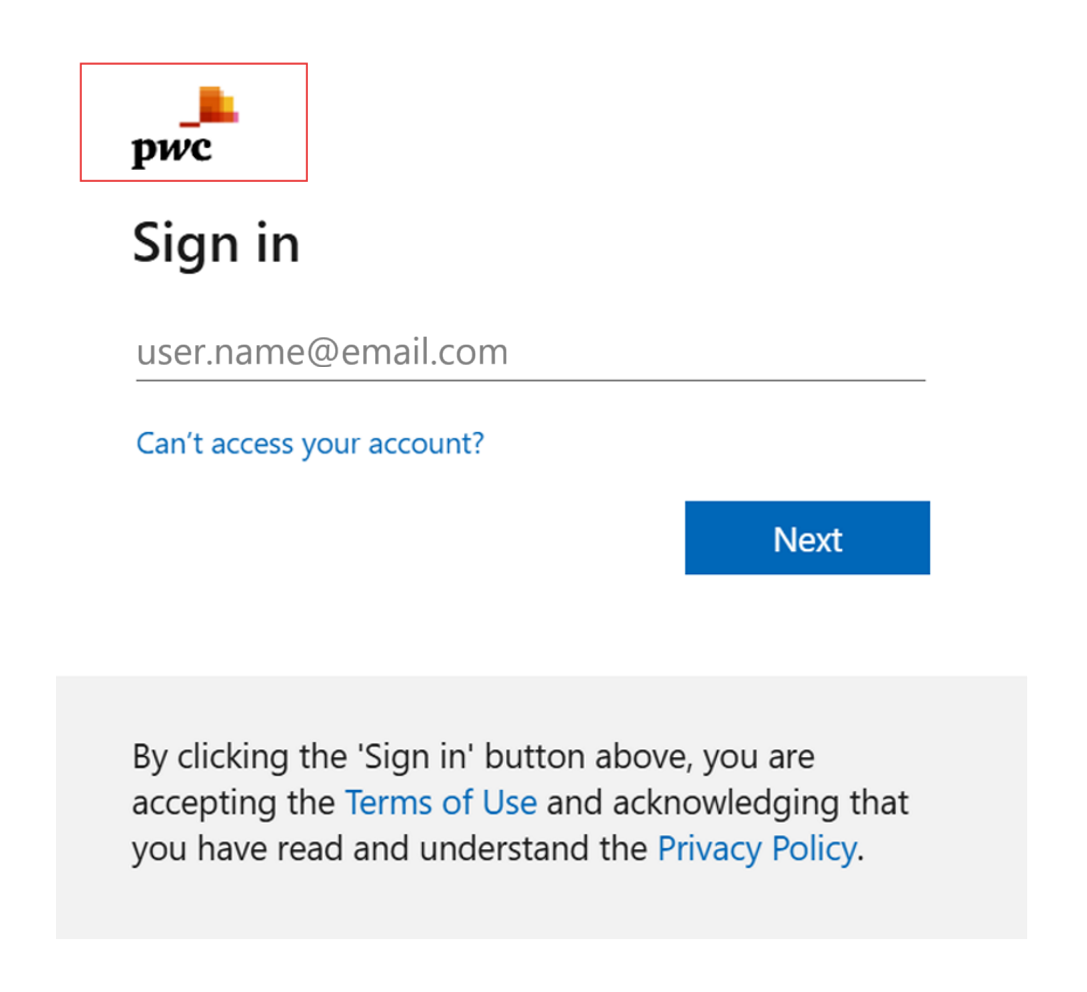 |
| Once the email is entered, Microsoft Entra ID identifies the federated user's home IdP and redirects them to their organization's authentication endpoint. There, the user completes sign-in using the methods configured by their organization, which may include password-based authentication and/or multi-factor authentication (MFA) | Redirects to federated user's home IDP: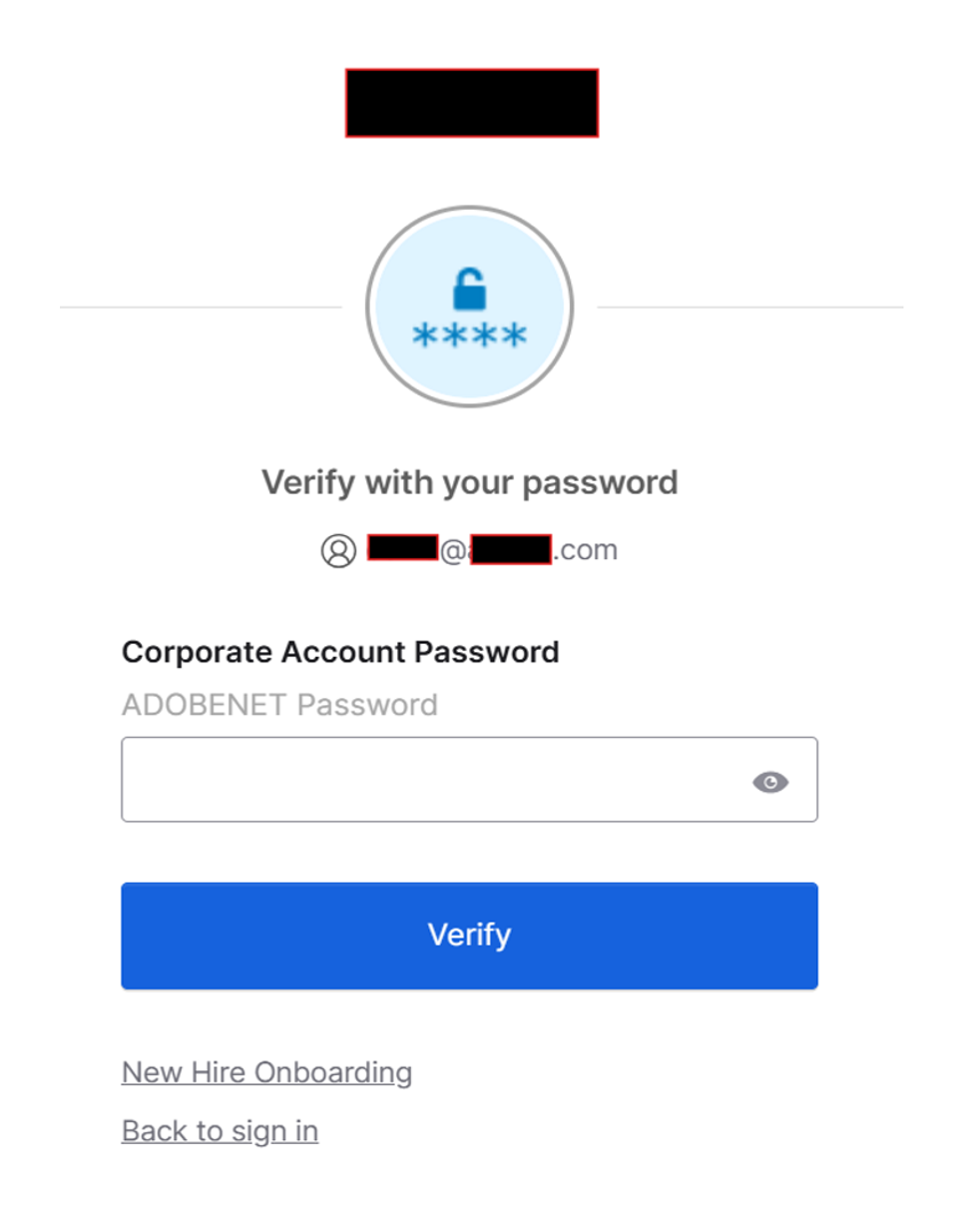 |
EOTP Users
(Gmail, Yahoo, etc.,)
| Authentication Process | User Experience |
|---|---|
| Users who do not belong to a managed identity provider (IdP) such as Microsoft Entra ID, Okta, or Ping, typically using personal email services like Gmail or Yahoo can still access applications as guest users. They will be prompted to enter an email address on the PwC applications login page. | PwC Login Screen: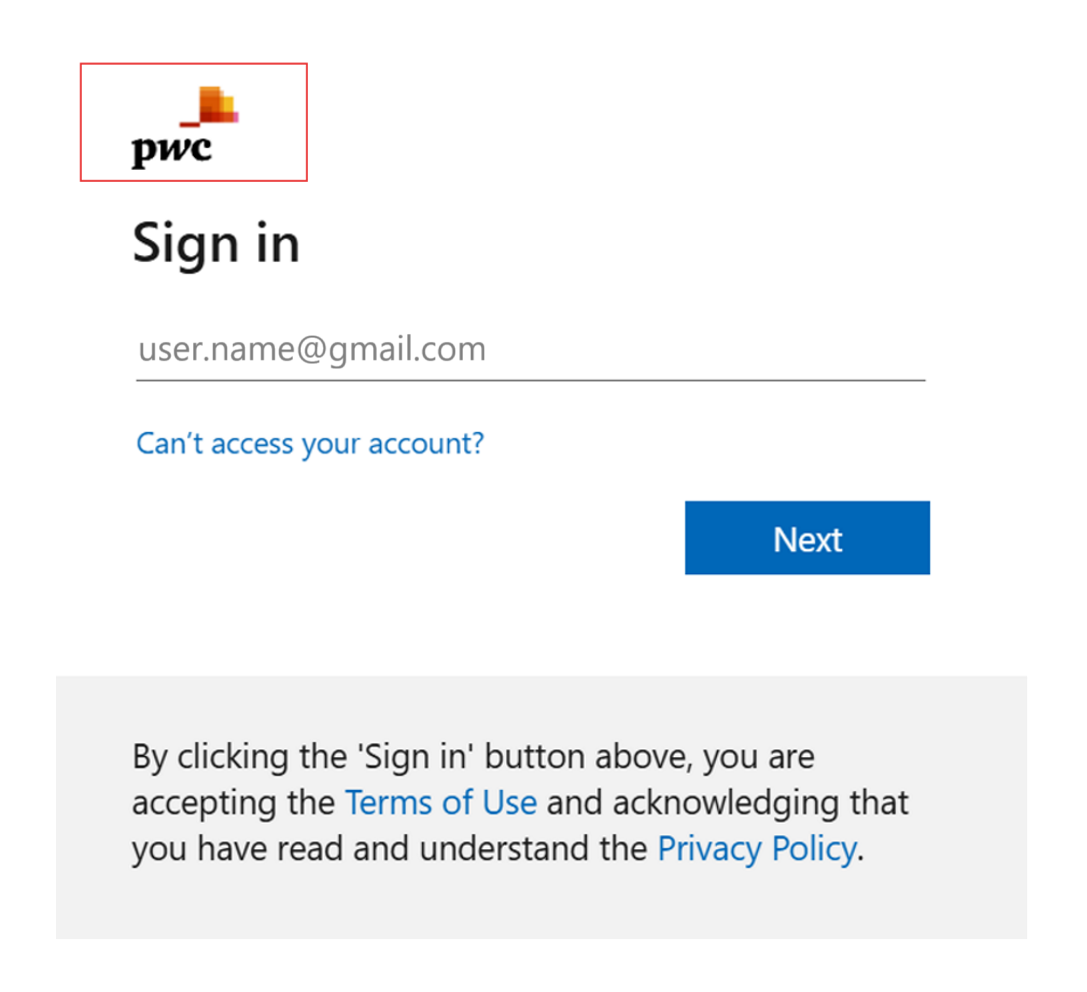 |
| Users will be prompted to verify the EOTP that was sent to the provided email address. | EOTP verification: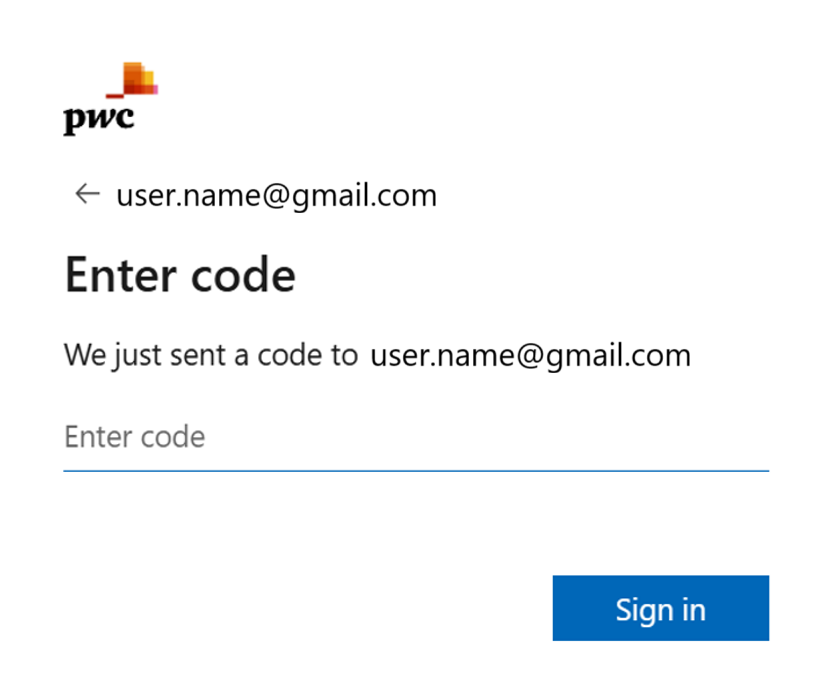 |
User will be also prompted for additional verification for MFA.
| MFA verification: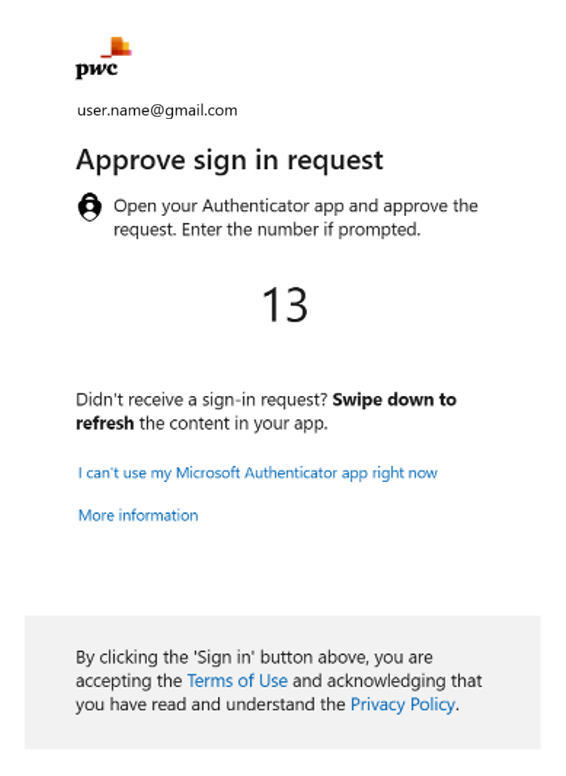 |