Multi-language Support for Guest User Invitations
> In Entra ID
Entra ID enables sending guest user invitations in multiple languages using the Microsoft Graph API, allowing customization beyond the default English invite emails sent via the portal. This guide explains how to specify the invite language, add custom messages, and the API requirements for inviting external users.
Introduction
When inviting users using Graph Application Programme Interface (API), Entra ID allows you to specify the message language for the invite.
You must use Graph API to get this functionality. When inviting a user via the Entra ID Portal or simply sharing a document in M365 to a guest user, there is no option to customise the invite email. It will be sent in English.
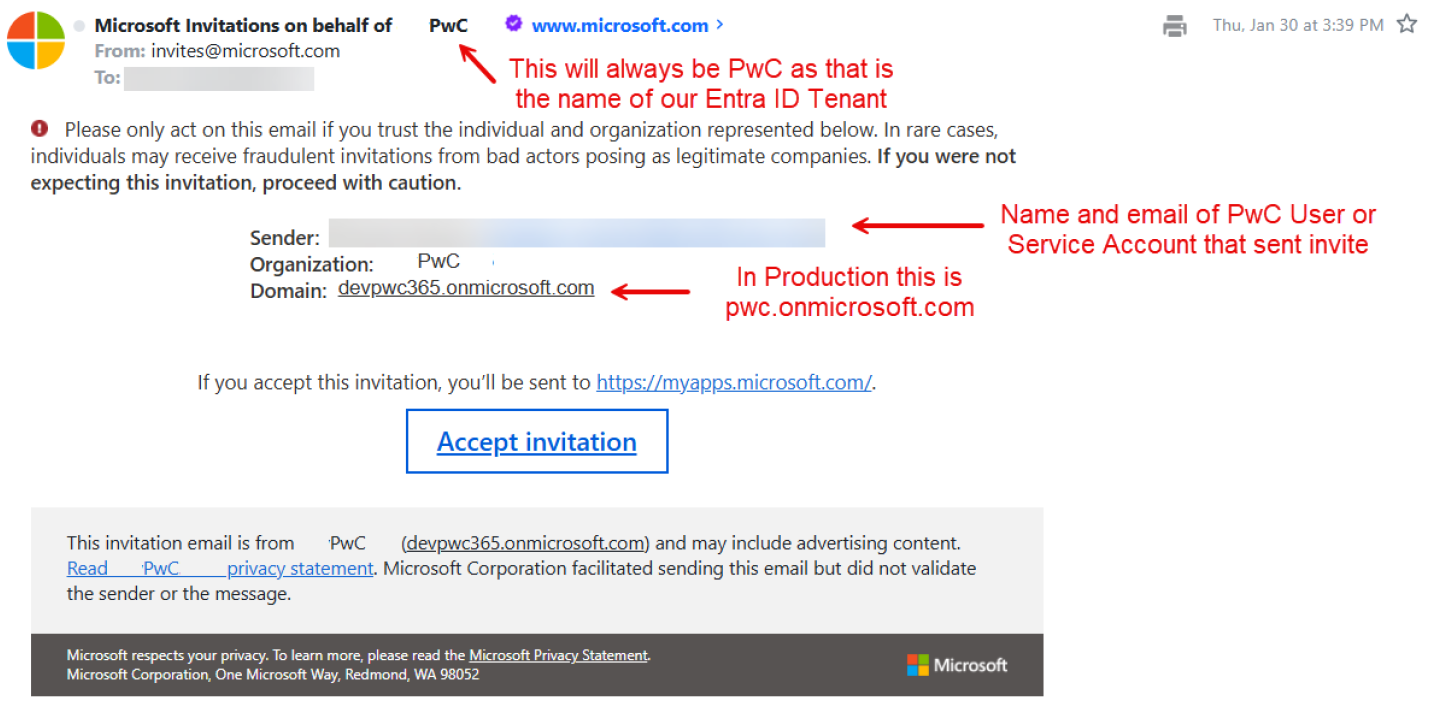
The invite email users receive is not a PwC custom email. It is a boilerplate email from Microsoft that inserts PwC and the senders name in various fields. This cannot be changed; it is the same for all companies that use Entra ID. Entra ID does allow you to insert a custom message in the email, but it is limited to text only; HTML tags are not allowed.
There are certain constraints on what can and cannot be translated, so please read this document in its entirety, as well as test, to help ensure you get the outcome you desire. Additional details can be found here.
Entra ID supports sending invites in dozens of languages. This article lists the currently-supported languages and the correct ISO 639 format to use.
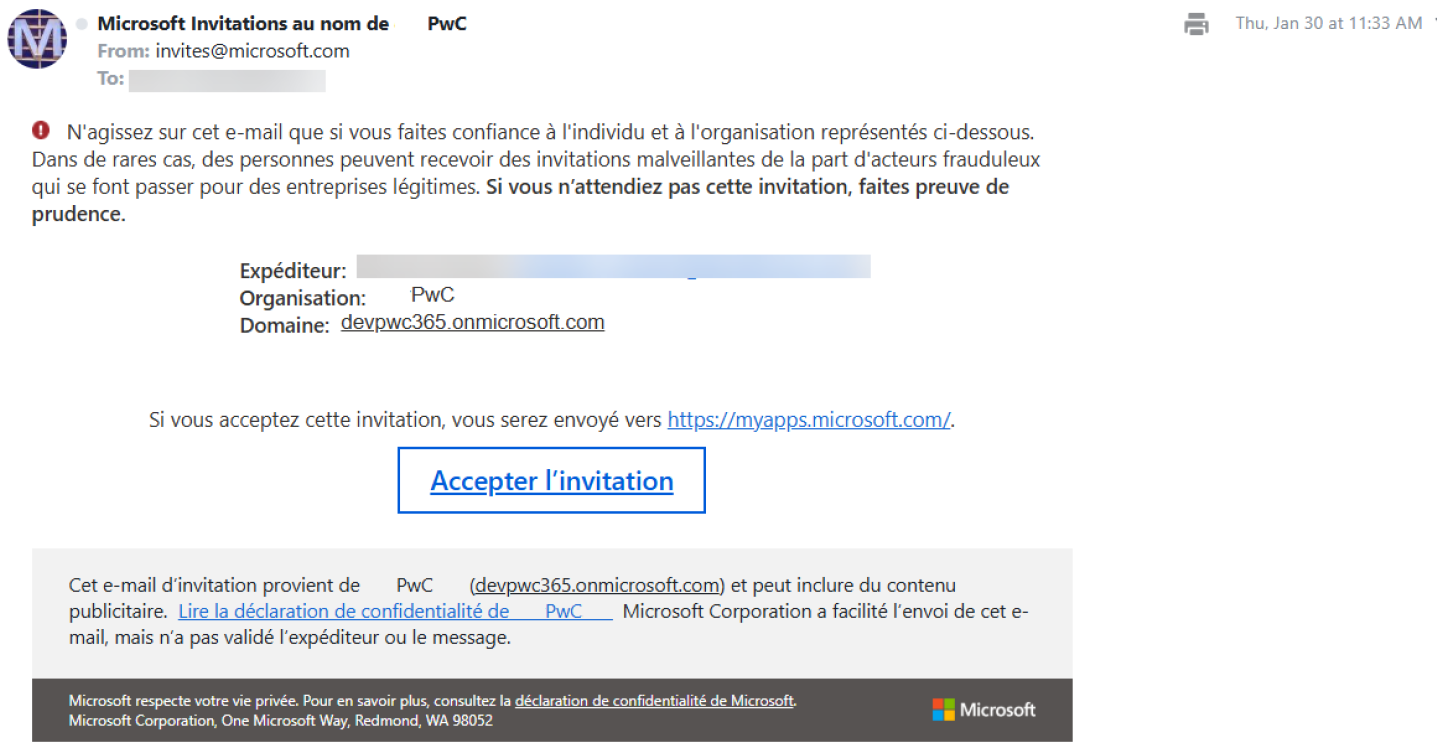
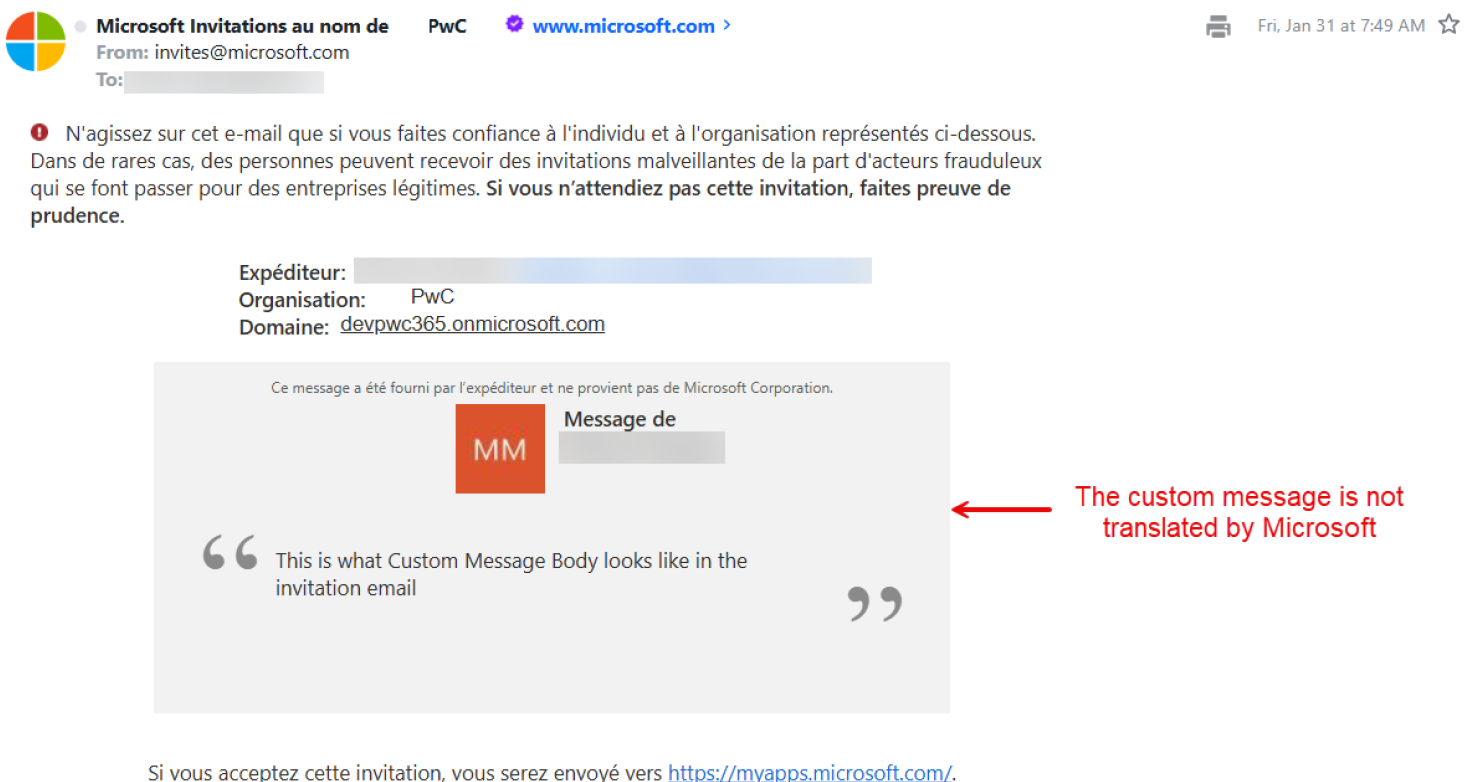
Appendix A contains screenshots of the standard email from Microsoft in English and other languages.
How Entra ID determines language to use in invite
The following settings determine the language that is presented to the guest user in the invitation email. These settings are listed in order of precedence. If a setting is not configured, the next setting in the list determines the language.
Language Precedence Order
-
The
messageLanguageproperty of theinvitedUserMessageInfoobject if the Create invitation API is used -
The
preferredLanguageproperty specified in the guest's user object -
The Notification language set in the properties of the guest user's home tenant (for Microsoft Entra tenants only)
-
The Notification language set in the properties of the resource tenant
If none of these settings are configured, the language defaults to English (US).
Important Notes
- Item 3 is controlled by the guest user's company/home tenant and cannot be changed by PwC.
- Item 4 is PwC Entra ID tenant language, which is set to English.
- When using Graph API to invite the user, you will set the
messageLanguageattribute (Item 1) so the user receives the invite in the language you specify.
API: Create/invite user
For more information regarding Entra ID methods, Microsoft provides a robust set of API documentation.
This method will allow an application to create/invite an external user to PwC's Entra ID tenant. Details on this method can be found here.
Required Attributes
Creating/inviting guest users requires passing along only three attributes:
InvitedUserEmailAddress– the user's email address.InvitedUserDisplayName– the user's full name.InviteRedirectUrl– the URL to which the user will be redirected once the invitation is redeemed.
It is recommended to set tohttps://myapps.microsoft.com, but can be any valid URL.
The sendInvitationMessage is not required when creating a guest user and the default is No. If you do not set sendInvitationMessage: true when specifying a messageLanguage, the invite will not be sent.
Required Permissions
User.Invite.AllUser.Read.All
Sample Code - Default Message
This sample code will send the invite email to the user in French. See Appendix A for results.
POST https://graph.microsoft.com/v1.0/invitations
Content-Type: application/json

{
  "invitedUserEmailAddress": "User's email address",
  "invitedUserDisplayName": "Users name as you want displayed",
  "inviteRedirectUrl": "https://myapps.microsoft.com",
  "sendInvitationMessage": true,
  "InvitedUserMessageInfo": {
    "messageLanguage": "fr"
  }
}
Sample Code - Custom Message
In addition to sending an invite email in a specific language, Entra ID does allow you to insert a custom message in the email, but it is limited to text only; HTML tags are not allowed.
Note: Entra ID does NOT translate the custom message, it is sent as is. Entra ID will only translate the standard boilerplate language in the invite. If you want to translate the custom message, you must do so yourself.
This sample code will send the invite email to the user in French and add custom message. See Appendix A for results.
POST https://graph.microsoft.com/v1.0/invitations
Content-Type: application/json

{
  "invitedUserEmailAddress": "User's email address",
  "invitedUserDisplayName": "Users name as you want displayed",
  "inviteRedirectUrl": "https://myapps.microsoft.com",
  "sendInvitationMessage": true,
  "InvitedUserMessageInfo": {
    "messageLanguage": "fr",
    "customizedMessageBody": "This is what Custom Message Body looks like in the invitation email"
  }
}
Appendix A: Sample invite screenshots
Default invite with message language in English
Invite with message language in French (fr)
Invite with message language in French (fr) with custom message body in English
Appendix B: References
| Name | Link | Description |
|---|---|---|
| Overview of Microsoft Graph | Overview of Microsoft Graph | Graph API overview |
| Working with Users in Microsoft Graph | Working with Users in Microsoft Graph | Users' Graph API resources for developers |
| Identity GUM API 2.0 – Consumer Guide | PwC Identity - GUM API 2.0 - Consumer Guide - v1.0.pdf | API guide for developers |
| GUM API SDK Reference Guide | GUM API SDK Reference_v1.0.xlsx | SDK for developers |
- Always test invitation emails in different languages before implementing in production
- Consider the user's preferred language when available
- Remember that custom messages are not automatically translated
- Use proper ISO 639 language codes for consistent results