Technical Migration Guide for Externals
This guide details the integrations needed between Entra ID and external third–party service providers for the purpose of establishing Single Sign On (SSO) with PwC Identity as an identity provider.
This document details the integration needed between Entra ID and external third-party service providers for the purpose of establishing Single Sign On (SSO) with PwC Identity as an identity provider. If you are looking for SSO setup on PwCID, please review the PwC Identity Consumer Guide.
This guide is intended for:
- PwC engagement leads or contacts with third-party application providers (e.g., Software as a Service [SaaS]) and
- External customers or vendors who want to integrate their applications with PwC Entra ID tenants.
Setup
Applications integrate with PwC Identity as a "relying party" - or service provider - on the enterprise PwC Entra ID tenant. To register a relying party with Entra Identity, application teams must submit a new integration / migration request. Vendors and external parties should reach out to their PwC contact as this is a PwC-specific function/activity.
Protocols
The following protocols are available for use with Entra ID:
- OAuth2
- Security Assertion Markup Language (SAML)
- WS-Federation (WS-Fed)
Prerequisites
The application team should supply the following details to their PwC contact to raise a ticket and to enable the PwC Identity Integration team to create a relying party/client ID.
- Preferred SSO protocol (e.g., SAML/WS-FED/OAuth)
- Entity ID /Client ID (For SAML and WS-Fed applications. For OAuth applications, the application/client ID will be provided by the Application Integration and Migration team
- Metadata XML if the application is using SAML or WS-Fed protocol
- Assertion Consumer Service URL for SAML and WReply URL for WS-Fed applications
- Redirect URI for OAuth
- Application types (for OAuth), single-page apps, web apps, web APIs, mobile apps, native apps, daemon apps or server-side apps
- OAuth scopes/API permissions (i.e., delegated or application permissions) and claims
- SAML claims including the attribute and format for NameID
- Post-logout redirect URI or single logout URI, if any.
Tenants
PwC has the following three tenants available to integrate new applications or migrate existing applications to.
| Production tenant | Stage tenant | Dev tenant | |
|---|---|---|---|
| Tenant name | PwC | PwC Staging | devPwC365 |
| Tenant ID | 513294a0-3e20-41b2-a970-6d30bf1546fa | 831f8b7b-7bbc-4d34-a62b-7baf9792d24a | d4093791-9818-48dc-8880-35d134b8c79d |
| Non-admin username syntax | john.smith@pwc.com | john.smith@testenv.pwc.com | john.smith@dev365.pwc.com |
| Admin username syntax | john.smith@admin.pwc.com | john.smith@admin.pwc.com | john.smith@admin.pwc.com |
Endpoints
Microsoft and PwC recommend that applications do not hard code authentication and authorisation endpoints, cache/ renew tokens and sessions. Instead, applications should use the Microsoft Authentication Library (MSAL), which provides the following benefits:
- eliminates the need to directly use the OAuth libraries or code against the protocol in your application
- provides the ability to acquire tokens on behalf of a user or an application (when applicable to the platform)
- maintains a token cache for you and handles token refreshes when they're close to expiring
- helps you specify which audience you want your application to sign in; the sign-in audience can include personal Microsoft accounts, social identities with Azure AD B2C organisations, work, school, or users in sovereign and national clouds
- helps you set up your application from configuration files, and
- helps you troubleshoot your app by exposing actionable exceptions, logging and telemetry.
- The Dev tenant is a sandbox environment used only for testing proof of concepts (PoCs).
- The Dev and Stage tenants do not have the same licenses as the production tenant. If the application requires a specific M365 or Azure license, please include that information in the Integration or Migration request.
- When planning to onboard lower environments of your application (e.g., PoC, Dev, Stage, UAT, QA or Test), please consider that the user profiles on the app side will need to use the non-admin username syntax.
After an application team requests the integration / migration, the Entra ID Application Integration and Migration team will provide the endpoints to be configured on the application side, as described below.
Sample SAML Endpoints
Below are the sample SAML endpoints that we will use by application teams as needed:
The following endpoints are relevant for SAML apps in Entra ID:
https://sts.windows.net/{{Tenant_ID}}
https://login.microsoftonline.com/{{Tenant_ID}}/federationmetadata/2007-06/federationmetadata.xml?appid={{Application_ID}}
https://launcher.myapps.microsoft.com/api/signin/<ApplicationID>?tenantId={{Tenant_ID}}
https://login.microsoftonline.com/{{Tenant_ID}}/saml2
https://login.microsoftonline.com/{{Tenant_ID}}/saml2
Note: The above endpoints are provided only for reference. Once the application is configured in Entra ID, the Entra ID Integrations and Migrations team will provide the exact endpoints, tenant and application ID for that application.
Sample WS-Fed endpoints
Below are the sample WS-Fed endpoints that will be used by application teams as needed:
https://sts.windows.net/{{Tenant_ID}}
https://login.microsoftonline.com/{{Tenant_ID}}/federationmetadata/2007-06/federationmetadata.xml?appid={{Application_ID}}
https://launcher.myapps.microsoft.com/api/signin/<ApplicationID>?tenantId={{Tenant_ID}}
https://login.microsoftonline.com/{{Tenant_ID}}/wsfed
https://login.microsoftonline.com/{{Tenant_ID}}/wsfed
Note: The above endpoints are provided only for reference. Once the application is configured in Entra ID, the Entra ID Integrations and Migrations team will provide the exact endpoints, tenant and application ID for that application.
Sample OAuth endpoints
Below are the sample OAuth endpoints that we will use by application teams as needed:
https://login.microsoftonline.com/{{Tenant_ID}}/v2.0/authorize
https://login.microsoftonline.com/{{Tenant_ID}}/v2.0/token
https://login.microsoftonline.com/{{Tenant_ID}}/v2.0/logout
https://graph.microsoft.com/oidc/userinfo
https://login.microsoftonline.com/{{Tenant_ID}}/discovery/v2.0/keys
https://login.microsoftonline.com/{{Tenant_ID}}/v2.0/.well-known/openid-configuration
https://graph.microsoft.com
Note: The above endpoints are provided only for reference. Once the application is configured in Entra ID, the Entra ID Integrations team will provide the exact endpoints, tenant and application ID for that application.
OAuth grant flows
OAuth + OIDC supports several grant flow types, including:
- Authorization Code Grant
- Authorization Code Grant with PKCE (Proof Key for Code Exchange)
- Oauth 2.0 Resource Owner Password Credentials Grant
- Oauth 2.0 Client Credentials Grant
- OAuth 2.0 Device Code Flow
PwC does not allow Implicit Grant flow in Entra ID due to well-documented security concerns. App teams migrating who currently use implicit grant must re-configure their apps to a more secure grant flow, such as the PwC-recommended Auth Code + PKCE flow, for both public and confidential clients.
Per OAuth2 standard, PwC Entra ID tenants will not support:
- wildcards in the callback URLs; instead, use absolute URIs. For more information, see RFC 6749.
- HTTP URIs/URLs
- localhost/loopback URLs in the production environment
- special characters: ! $ ' ( ) , ;
- international domain names
In addition, please note the following recommendations:
- There is a limit of 256 redirect URIs per application with a maximum of 256 characters for each redirect URI. If your application requires additional redirect URIs, please consider using a
stateparameter; see here. - Redirect URIs without a path segment are returned with a trailing slash when ‘query’ or ‘fragment’ is used for the ‘response_mode’ parameter.
- Redirect URIs with a path segment are not returned with a trailing slash.
The endpoints described below are used in the OAuth Protocol for the desired grant flow.
OpenID + OAuth2
/authorize
The client will authorize itself with Entra ID by invoking the authorize endpoint and proving it with the following query parameters.
-
Tenant_ID
This will be an alpha-numeric Global User ID (GUID) provided by the App Integration team, once the application is onboarded to identify the PwC Entra tenant that the application has been onboarded to. For the available tenant IDs, please refer to the above "Tenants" section. -
State
This is a value included in the request that is also returned in the token response; it can be a string of any content that you wish. A randomly generated unique value is typically used for preventing cross-site request forgery attacks. The value can also encode information about the user's state in the app before the authentication request occurs. For instance, it could encode the page or view they were on. -
Client_id
An alpha-numeric GUID that will be provided by the App Integration team once the application is onboarded to the PwC Entra ID tenant. -
Redirect_uri
This is the URI where authentication responses can be sent and received by your app. It must exactly match one of the redirect URIs you registered in the Microsoft Entra admin center, except it must be URL-encoded. For native and mobile apps, use one of the recommended values: https://login.microsoftonline.com/common/oauth2/nativeclient for apps using embedded browsers. -
Scope
This is a space-separated list of scopes that you want the user to consent to. For the /authorize leg of the request, this parameter can cover multiple resources. This value allows your app to get consent for multiple web APIs you want to call. -
Response_type
Must include code for the authorisation code flow. -
Response_mode
Listed below are the supported values for this parameter:- query: default when requesting an access token; provides the code as a query string parameter on your redirect URI
- form_post: executes a POST containing the code to your redirect URI; supported when requesting a code
-
Code_challenge
This is used to secure authorization code grants by using PKCE. Required if the code_challenge_method is included. For more information, see the PKCE RFC. This parameter is recommended for all application types, both public and confidential clients, and is required by the Microsoft identity platform. Click here for an overview of the solution. -
Code_challenge_method
The method used to encode thecode_verifierfor thecode_challengeparameter. While this should be S256, the spec allows the use of plain if the client cannot support SHA256. If excluded,code_challengeis assumed to be plaintext ifcode_challengeis included. The Microsoft identity platform supports both plain and S256.
For more information, see the PKCE RFC and an overview of the solution.
A sample /authorize request would look like what is shown below:
https://login.microsoftonline.com/{{Tenant_ID}}/oauth2/v2.0/authorize?client_id={{Client_id}}&response_type=code&redirect_uri=http%3A%2F%2FAbc.com&response_mode=query&scope=https%3A%2F%2Fgraph.microsoft.com%2Fmail.read&state=12345&code_challenge=YTFjNjI1OWYzMzA3MTI4ZDY2Njg5M2RkNmVjNDE5YmEyZGRhOGYyM2IzNjdmZWFhMTQ1ODg3NDcxY2Nl&code_challenge_method=S256
A successful response should look like the following:
GET https://abc.com?code=AwABAAAAvPM1KaPlrEqdFSBzjqfTGBCmLdgfSTLEMPGYuNHSUYBrq...&state=12345
For details, please click here.
/token
The client will swap the code received from the /authorise API in return for an access token.
Code– the output received by the application from the /authorise APIClient_id– the configured id identifying the application as a client in PwC IdentityClient_secret– the set credential in authorizing a client in PwC IdentityRedirect_uri– the redirect URI to return to after the client is granted an access tokenGrant_type– set to authorization_code
A sample /access-token request would look like what is shown below:
https://login.microsoftonline.com/{{TenantID}}/oauth2/v2.0/token
The body of the API call would have the parameters listed above.
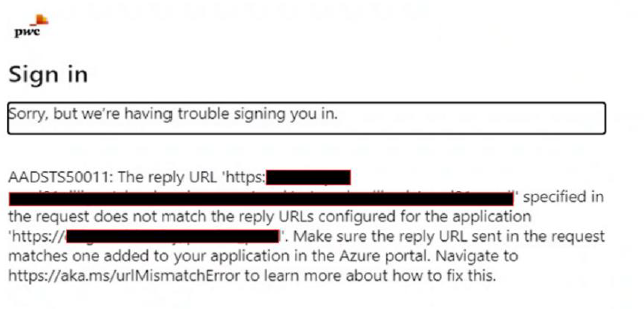
Note: Please ensure the redirect URI being used at the app side matches the redirect URI configured on PwC Entra ID. Even a slight change will produce a redirect mismatch error. Work with your Entra ID requestor or processor to configure this correctly. Also be aware that PwC Entra ID does not support a wildcard in the redirect URI – it must be an exact match.
The following screenshot is an example of a login error message:
/userinfo
In Entra ID, the information in an ID token is a superset of the information available on an UserInfo endpoint. Because you can get an ID token at the same time you get a token to call the UserInfo endpoint, we suggest getting the user's information from the token instead of calling the UserInfo endpoint. Using the ID token instead of calling the UserInfo endpoint eliminates up to two network requests, reducing latency in your application.
If you require more guidance about the user, such as a manager or job title, call the Microsoft Graph /user API. You can also use optional claims to include additional user information in your ID and access tokens.
Revoke Entra ID Access Token & Refresh Tokens
To revoke a user session with Graph API, review the following article:
To read more about the revoking process, review the following article:
Scope and claims
Scopes are a list of claims that can be retrieved from Entra ID. The scope is provided during the authorization phase. The following scope parameters have been set as default for application integration:
profile– returns basic user information as per PwC Identity configurationopenid– retrieves the id_token parameteremail– returns user email
Note: Please reach out to your PwC contact to request additional required scopes in the initial integration request via ServiceNow (SNow).
Authorisation
OAuth2 does not provide fine-grained authorization. Instead, OAuth2 will pass the requested information (including identity information and group membership) for the application to consume and apply local fine-grained authorization rules. This is something that the application must address on its own.
Depending on the application framework, this can be handled in several ways:
- ASP. Net Forms – the .NET framework does not provide any integration with OAuth2.
- Authorisation can be achieved by verifying the user’s group membership via claims and using that information to allow/deny user access to the application or to simulate role information.
- Web API / MVC – the .NET framework can protect specific resources by using security annotations on controller actions.
User Consent
In Entra ID by default, the Entra ID Integrations and Migrations teams will grant the user consent for the delegated permissions. This means users will not see a prompt to do consent.
Note: For the multi-tenant apps that are deployed on the PwC tenant, admin consent needs to be granted by the M365 team. Application vendors and external parties should reach out to their PwC contact for support.
Logout using end session endpoint
The id_token can be invalidated as follows. When obtaining the claim information, the id_token can be obtained by using the openid scope. This will return the id_token. The token_id is stored until it is ready for use. When ready for logout, invoke the /endSession endpoint. If your application has a requirement to call logout URL, review the Send a Sign-out request article.
Example:
https://login.microsoftonline.com/common/oauth2/v2.0/logout? post_logout_redirect_uri={{LogoutPageURL>}}
Note: This will not affect the application-side session.
SAML and WS-Fed
SAML is a federated protocol that can be used as an alternative way for achieving Cross Domain SSO (CDSSO). WS-Fed is typically used to provide SSO and identity federation for .NET-based applications and services.
Prerequisites
To use SAML, an application must be able to support SAML 2.0 protocols by:
- onboarding an integration to the application (many third-party apps allow users to configure Federation) or
- hosting SAML libraries on the application server, which allows a developer to call the libraries to establish a Federation connection.
For WS-Fed, integrations will usually be performed via this protocol when integrating with a .NET based application.
SAML ACS validation
The Assertion Consumer Service (ACS) URL(SAML)/ Token Endpoint (WS-Fed) in Entra ID needs to be an exact match between the request being sent by the application and the configuration in Entra ID. Entra ID performs a redirect URL validation and will throw an error if it is not an exact match. Please register all endpoints that will be used as part of the integration request.
Identity Provider (IdP)-initiated vs. Service Provider (SP)-initiated
Applications integrating with Entra ID need to clarify the following points:
- Does the app expect a user to come to their URL first (SP-initiated), with redirects back to Entra ID to conduct the authentication and authorization?
- Does the app expect a direct link (URL whose base is different from the integrating application) to the Federation source, Entra Identity (IdP-initiated)?
Notes: The IdP-initiated SSO does not support multiple ACS.’ It will always select the first ACS from the list configured on the Entra ID side. To use multiple ACS’, the app needs to use a SP-initiated SSO.
Additionally, the ACS needs to be an exact match on both the SP and IdP sides and it is case-sensitive. An accelerator for this configuration is to request metadata imports.
WS-Fed logout
WS-Fed logout in Microsoft Entra ID works by redirecting the user to a logout endpoint that clears the session both on app and in Entra ID. To send a logout request, use the below endpoint with wa= wsignout1.0, a parameter which tells Entra ID to initiate a sign-out.
https://login.microsoftonline.com/{{Tenant ID}}/wsfed?wa=wsignout1.0
To redirect to the application logout page after logout, include a wreply parameter.
https://login.microsoftonline.com/<Tenant ID>/wsfed?wa=wsignout1.0&wreply=<Applicationlogouturi>
Note: The application team must use the correct WS-Fed meta-alias, which can be provided by the integration team on the initial integration request.
Frequently Asked Questions (FAQs)
- How many environments does Entra ID have?
Entra has three environments (i.e., tenants) that are available for applications − Dev (reserved for PoC), Stage and Production.
- What is the Service Level Agreement (SLA) for completing an integration or migration request with Entra ID?
Our general SLA is four business days to complete the request, assuming that we have all the required information to perform the integration.
- What is the change window when this change can be implemented?
The change window is as follows:
Stage – 4 PM to next day at 8 AM EST, Monday to Thursday
Prod – 10 PM to next day at 6 AM EST, Monday to Thursday
- What information is needed from the application team to do the integration?
For SAML/WS-Fed, we need the SP Entity Id, ACS URL and the Name Identifier and attributes required by the application.
For OAuth, we need the redirect_uris and scopes.
- Does Entra ID support access restrictions?
Yes, with Entra ID we can enable access restriction based on the users and groups. Additional restrictions based on application-specific data must be handled from the application side.
- How can we test or validate the setup as an external vendor?
For applications set up for internal users only, any testing required must be performed with the PwC application owners as these applications are not allowed to be accessed by external users.
For apps that are set up for external users as well, external users need to be invited to EntraID to perform testing. Please reach out to your PwC contact to get your user account invited.
- Are external users required to accept the Business to Business (B2B) guest invitation?
Yes. Client guest users are required to redeem the B2B guest invitation; without accepting the invitation, external users will not be able to authenticate. Users can follow the guidance offered in the B2B collaboration invitation redemption file or use this direct link to redeem the invitation.