Application Testing by Environment
Production vs Non-Production Testing in Entra ID
Transitioning from PwC Identity (ForgeRock) to Entra ID introduces key differences between Production and Non-Production environments due to domain ownership and device authentication constraints. These differences may impact how application teams carry out their app testing, both during and after migration. This article provides different testing options to accomodate each team's various needs and considerations.
Summary
With PwC Identity (ForgeRock), all environments (Development, Stage and Production) are identical when it comes to PwC user data and authentication and authorization. Applications owners could deploy their Non-Production application instances in PwC Identity lower environments to test, knowing they get the exact same experience and user data when they move to PwC Identity Production. This was possible because PwC Identity (ForgeRock) is an on-prem service/applications.
As we move to Entra ID, which provides Identity as a Service (IDaaS), we lose the ability to have Non-Production instances of Entra ID exactly the same as Production.
Entra Environment Differences
Two main differences distinguish Non-Production instances of Entra ID from Production.
-
UPN/Email: With Entra ID, only one tenant/environment can own a domain name, so we can only have one environment with Production UPN/email addresses (pwc.com, au.pwc.com, pwc.ch, etc) on normal user accounts.
-
Authentication: We are moving to a Zero Trust model that includes device authentication. Devices can only be managed by one MDM (Intune) and only belong to one Entra ID tenant. To get exactly the same authentication process and flow for staging or development Entra ID environments, all users would need to have multiple devices in these lower environments to directly authenticate to Entra ID.
Addressing Differences Between Non-Production and Production Entra ID
Two options exist for application testing when integrating into Staging Entra ID:
| Option | Approach |
|---|---|
| 1 | Use existing Staging Entra ID account (user.name@testenv.pwc.com)ex: if a user's Production email is |
| 2 | Use Production Entra ID account after adding as a guest in Staging Tenant with B2B |
As an application owner, which option you choose, or a combination of options, depends on your testing requirements. Each option is described in more detail below.
Option 1 - Use Existing Staging Accounts
PwC's Staging Entra ID Tenant/Environment is fully populated with all PwC user accounts (user.name@testenv.pwc.com), with matching business card data. However, several differences remain:
- UPN/Email for all users is
user.name@testenv.pwc.com- NOTuser.name@pwc.com. - By default, users do not have an M365 license for Outlook, Teams, OneDrive, etc. However, upon request, this can be added to an account.
- Authentication is via Federation/SSO to PwC Identity (ForgeRock) Staging environment via PwC Certificates. This is the method PwC used for years for authentication before the rollout of Modern Authentication.
Existing testenv.pwc.com accounts are appropriate for testing when:
- ☑️ You need just basic functional testing of authentication into your application
- ☑️ You do not use email address for anything other than simple authentication.
- ☑️ Basic performance testing of your application
- ☑️ You do NOT have a mobile version or thick client for your application, i.e. it is only accessed via browser by users.
Option 2 - Use Production Entra ID account as guest in Staging Tenant with B2B
Entra ID supports Bring your Own Identity when needing to access resources/applications across tenants, referred to as B2B. When a user account in their home tenant, in this case PwC Production (user.name@pwc.com) needs to access a resource/application in another tenant, in this case Staging, you can add the user as a guest in that tenant. When added as a guest they get an account with the following basic information, that is "linked" back to their account in the home tenant.
-
UPN: Since UPN must be unique globally across all of Entra ID, the UPN for the guest account is automatically formulated by modifying the home tenant account UPN. For example, if home tenant user UPN is bob.x.smith@pwc.com, the guest account UPN will be set to, bob.x.smith_pwc.com#EXT#@PwCstg365.onmicrosoft.com
-
Display Name: This is pulled from the home tenant as-is
-
Mail: This is the email of the home tenant account, for example
bob.x.smith@pwc.com.
As part of the B2B cross-tenant synchronization process, the following attributes are currently being synced from Production to Stage.
▶️ Scroll to the right to view example values.
Entra Production tenant attribute name(pwc.com accounts) | Entra Stage tenant attribute name(pwc.com accounts) | Example Values |
|---|---|---|
onpremisessamaccountname | user.sAMAccountName(extension_16407ed16fd247ccbf9998d5f475a973_sAMAccountName) | jdoe001 |
user.pwcGlobalGradeAbbreviatedName(extension_f60408144ef64e43bf5acb840afe71a9_pwcGlobalGradeAbbreviatedName) | user.pwcGlobalGradeAbbreviatedName(extension_16407ed16fd247ccbf9998d5f475a973_pwcGlobalGradeAbbreviatedName) | Admin |
city | city | London |
Country | Country | GB |
extension_f60408144ef64e43bf5acb840afe71a9_pwcPartyID | TBD | 6b644838-2c9c-492e-8c06-ef30112bf26c |
extension_f60408144ef64e43bf5acb840afe71a9_pwcCostCentreDescription | TBD | IT Svcs-Security |
extension_f60408144ef64e43bf5acb840afe71a9_pwccostcenter | TBD | US00007809 |
extension_f60408144ef64e43bf5acb840afe71a9_pwcLocalLoSLevel1 | TBD | Business Services |
extension_f60408144ef64e43bf5acb840afe71a9_pwcLocalLoSLevel2 | TBD | PwC IT Global |
extension_f60408144ef64e43bf5acb840afe71a9_pwcLocalLoSLevel3 | TBD | PwC IT Serv Co |
extension_f60408144ef64e43bf5acb840afe71a9_pwcGlobalNetworkCompetencyName | TBD | IFS - Information Technology (IT) |
extension_f60408144ef64e43bf5acb840afe71a9_extensionAttribute5 | TBD | 3333333333 |
extension_f60408144ef64e43bf5acb840afe71a9_employeeNumber | TBD | 11111111111 |
extensionAttribute4 | TBD | US123456789 |
extensionAttribute7 | TBD | john.s.doe@us.pwc.com |
extensionAttribute9 | TBD | 123456789 |
extensionAttribute9 | TBD | GB |
Entra ID uses "Cross-tenant sync" to facilitate guest account creation between tenants. Cross-Tenant Sync allows tenant owners to automatically create/sync accounts from the home tenant to another tenant as guests, but also flow any additional information as needed from the account in the home tenant.
Using Cross-Tenant Sync will allow PwC to populate all the basic PwC business card data from Production accounts such as Line of Service, Staff Class, Office, Cost Center, Employee number, etc. on the Staging tenant guest account. This will support applications being able to use these guest accounts for their application to get claims in tokens with business card data, as well as leveraging Production email addresses, pwc.com instead of testenv.pwc.com.
As for authentication, with B2B, since users are already authenticated with their Production account, they SSO to Staging Tenant with no additional prompts or authentication needs.
B2B accounts are appropriate for testing when:
- ☑️ You need more than just basic functional testing for your application, and you currently use pwc.com email addresses for authorization.
- ☑️ You use the email address in token for anything other than authorization.
- ☑️ You need basic business card data in tokens/claims
- ☑️ You have a mobile version of your application
- ☑️ You want to test Modern Authentication access to your application. While you will not be authenticating directly to Staging tenant with Modern Authentication, with B2B, users will authenticate to Production with Modern Authentication and that is passed in the B2B token to Staging tenant.
Applications do not need to make any special changes to their applications to use B2B and Cross-Tenant Sync. This functionality is a back-end process and already in place today between Production and Staging Entra ID tenants.
Cross-Tenant Sync Implementation Guidance
Until a self-service option is available...
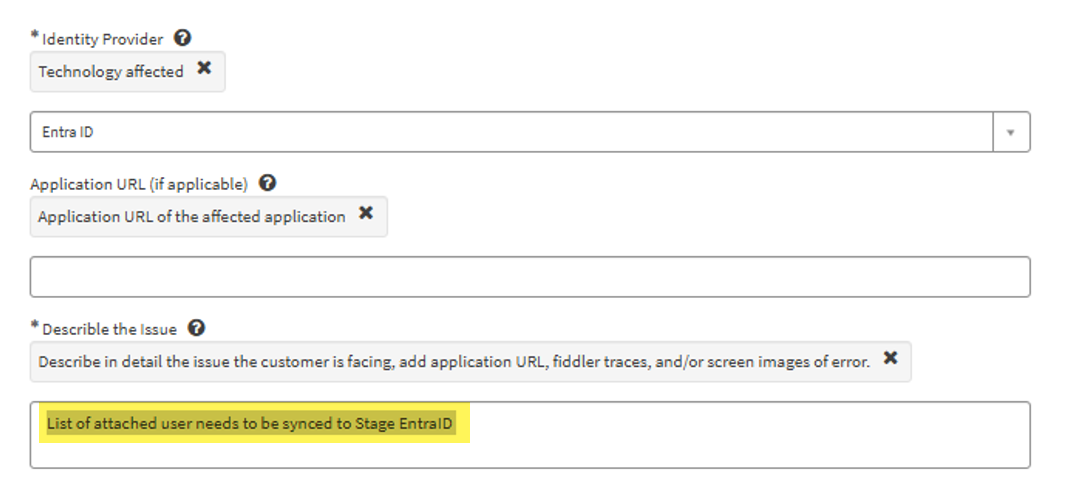
Follow these steps to add your account (or a test account in Production) to Cross-Tenant Sync, so it is automatically created in staging tenant for use:
📝 ServiceNow Request: Open this form
Identity Provider: Select
Entra IDIn the request's Description mention: "List of attached user(s) needs to be synced to Stage EntraID"
GLOBAL - NIS - IDENTITY AND ACCESS MANAGEMENT - APPLICATION INTEGRATION TROUBLESHOOTING
(SCTASK - App Integration Troubleshooting queue)
Sequence Diagrams
Federated Authentication - Staging Access
The diagram below illustrates the authentication process using federation for Entra ID staging.
B2B Authentication - Staging Access
The following diagram shows how authentication works with native B2B in Entra ID for all cross-tenant access between:
- PwC's Staging Entra ID tenant, where the application resides, and
- PwC's Production Entra ID tenant where the user's account resides.