Entra ID New Admin(z) Account Guide
This activity is part of a group of prerequisites for migrating to Entra ID.
Microsoft Entra ID will have a self-managed model that pertains to certain aspects of application management, as well as user and group management. To carry out these tasks, it is important to ensure that you have the necessary access to the Microsoft Entra portal. Your regular PwC account (i.e., firstname.lastname@pwc.com) will not be able to accomplish these application management tasks.
This guide will walk you through the steps to validate your access and raise the necessary tickets to request access to the Microsoft Entra Portal.
You will receive access to an account in the following format: john.doe@admin.pwc.com. This account will be created in the Entra production tenant and synced to the Entra staging tenant.
Admin account necessity
Admin accounts are required because they allow app owners to carry out the the following application management tasks:
- Apply User and Group application access restrictions
- Certificate and Secret Management
- Assign application owner permission to other admin(z) account holders (covered in the Next Steps section)
Verify Tenant Admin Access
Follow these steps to determine if you have access to the Microsoft Entra ID portal.
- Open incognito/private browser
Open either a new incognito browser (Google Chrome) or new inPrivate browser (Microsoft Edge) by right clicking the browser in your taskbar.
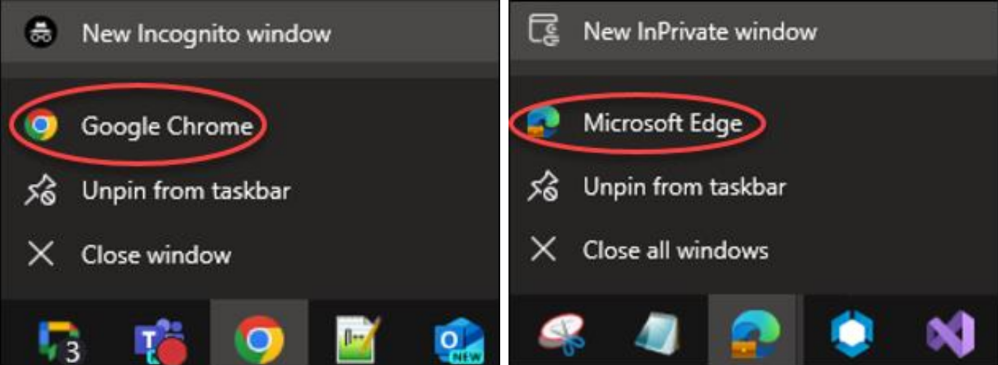
Ctrl + Shift + N with your standard browser open.- Navigate to Azure portal
In the inPrivate / incognito browsing session, go to:
https://portal.azure.com/#view/Microsoft_AAD_IAM/StartboardApplicationsMenuBlade/~/AppAppsPreview/menuId~/null
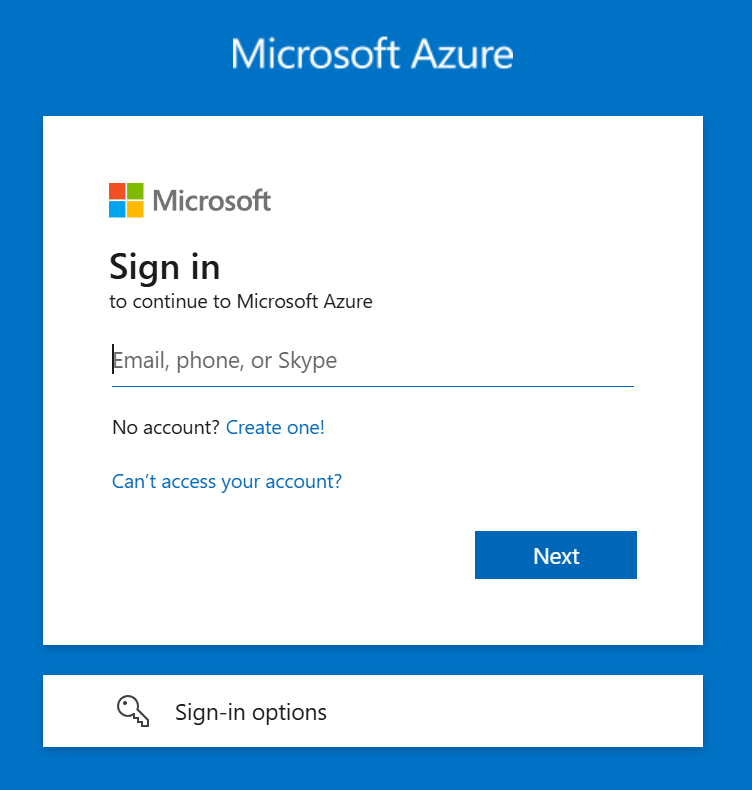
You should see a page that looks like this:
- Enter admin credentials
Enter your username but with the PwC admin suffix - for example: john.doe@admin.pwc.com - then click Next.
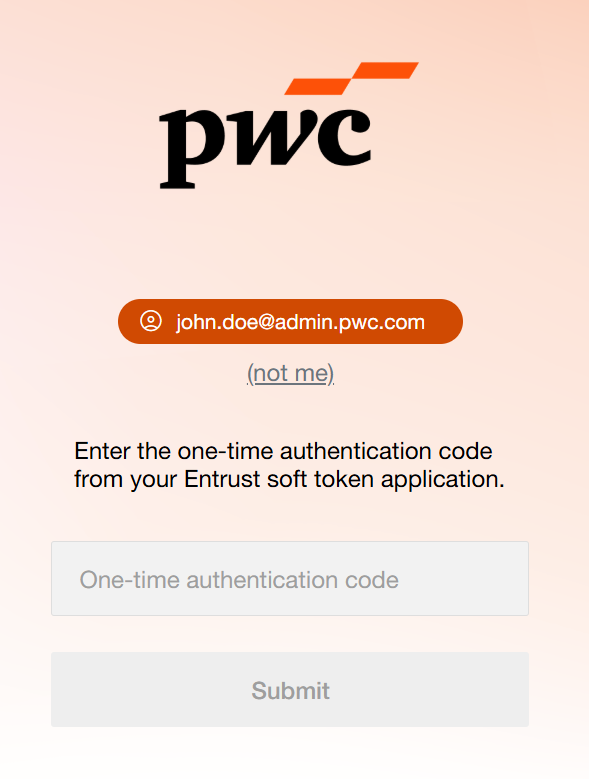
You will redirect to a PwCID page, prompting for an Entrust Multi-Factor Authentication (MFA) one-time authentication code:
- Handle account provisioning errors
If you do not yet have an admin account provisioned, you will receive a Single Sign On Error as shown below:
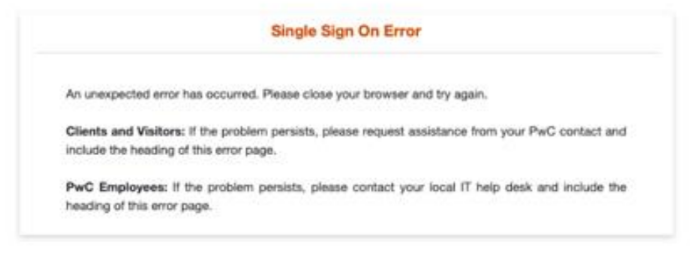
If this occurs, skip to the Raise a Ticket section for guidance on requesting the provisioning of the admin account.
- Verify production tenant access
You will be redirected to the Azure portal. Make a note of the tenant name and domain you see in the upper right corner. If it displays PwC, then you have logged in successfully to the production Azure tenant and you have the necessary access in the production tenant.

- Handle access errors
If you receive a You do not have access error message, skip to the Raise a Ticket section for guidance.
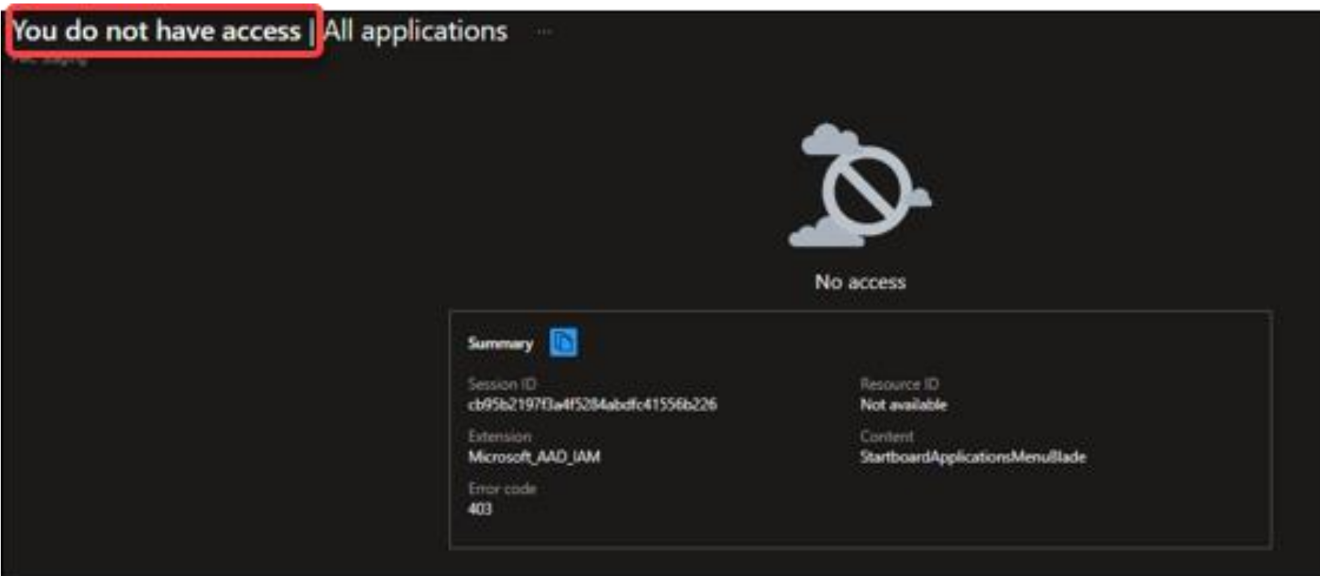
- Test staging tenant access
After confirming your access, you are ready to start using the staging tenant. By default, most users do not have access to the staging tenant. We will, however, test the access before we raise a ticket.
Go to the upper right corner, where you earlier saw the logged in username, and click the username. Next, click the Switch directory option.
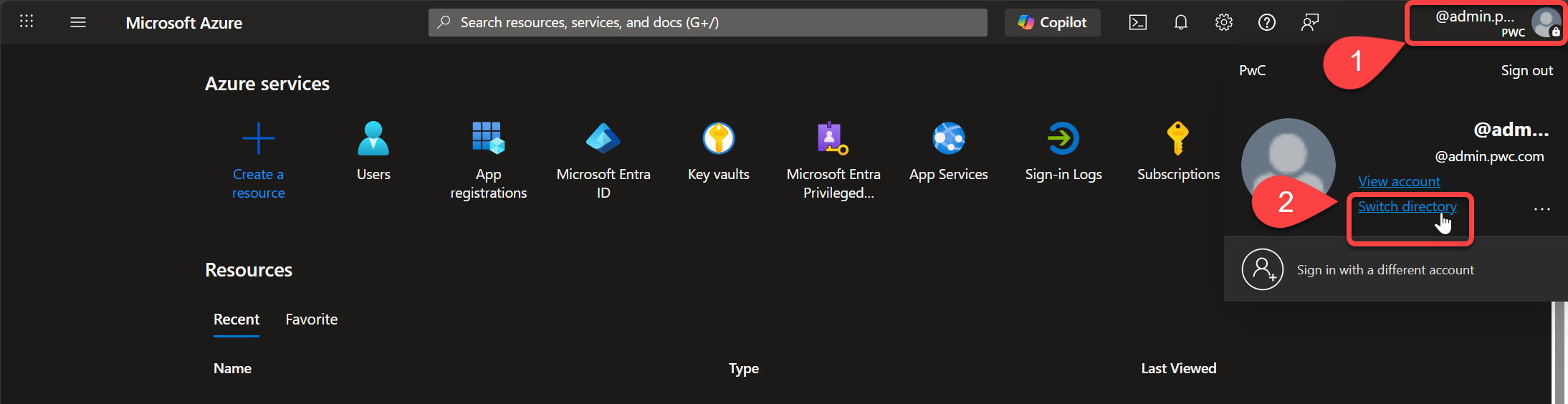
- Access staging tenant
You should now see the Entra tenants / directories you have access to.
- Look for the PwC Staging directory. If you see it, click its corresponding button to access the staging portal.
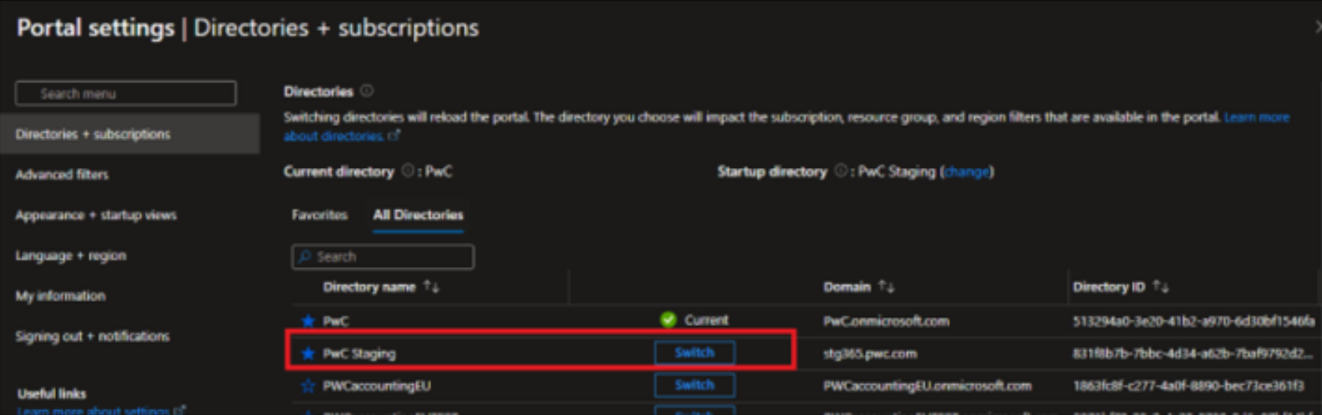
- If you do not see PwC Staging, this means you do not have access to the Entra staging tenant; skip down to the Raise a Ticket section for next steps.
Verify App Ownership
Follow these steps to ensure you can access all applications in the tenant.
✅ Prerequisites:
- Verified access to the PwCID Entra ID tenant (as described in the previous section)
- Successfully signed into the Azure Portal (incognito/inPrivate browser) with your
@admin.pwc.comcredentials - Correct directory / environment / tenant selected (Steps 7 & 8 in the previous section)
- Navigate to Entra ID
From within the Azure Portal, if successfully logged in with your @admin.pwc.com credentials.
Click the Microsoft Azure hamburger icon. Then, from the dropdown, click Microsoft Entra ID.
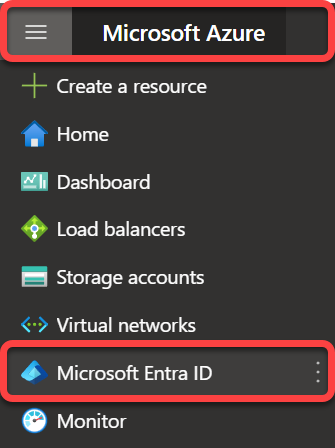
2. Access Enterprise applications
From the left pane, click Manage ▶️ Enterprise applications
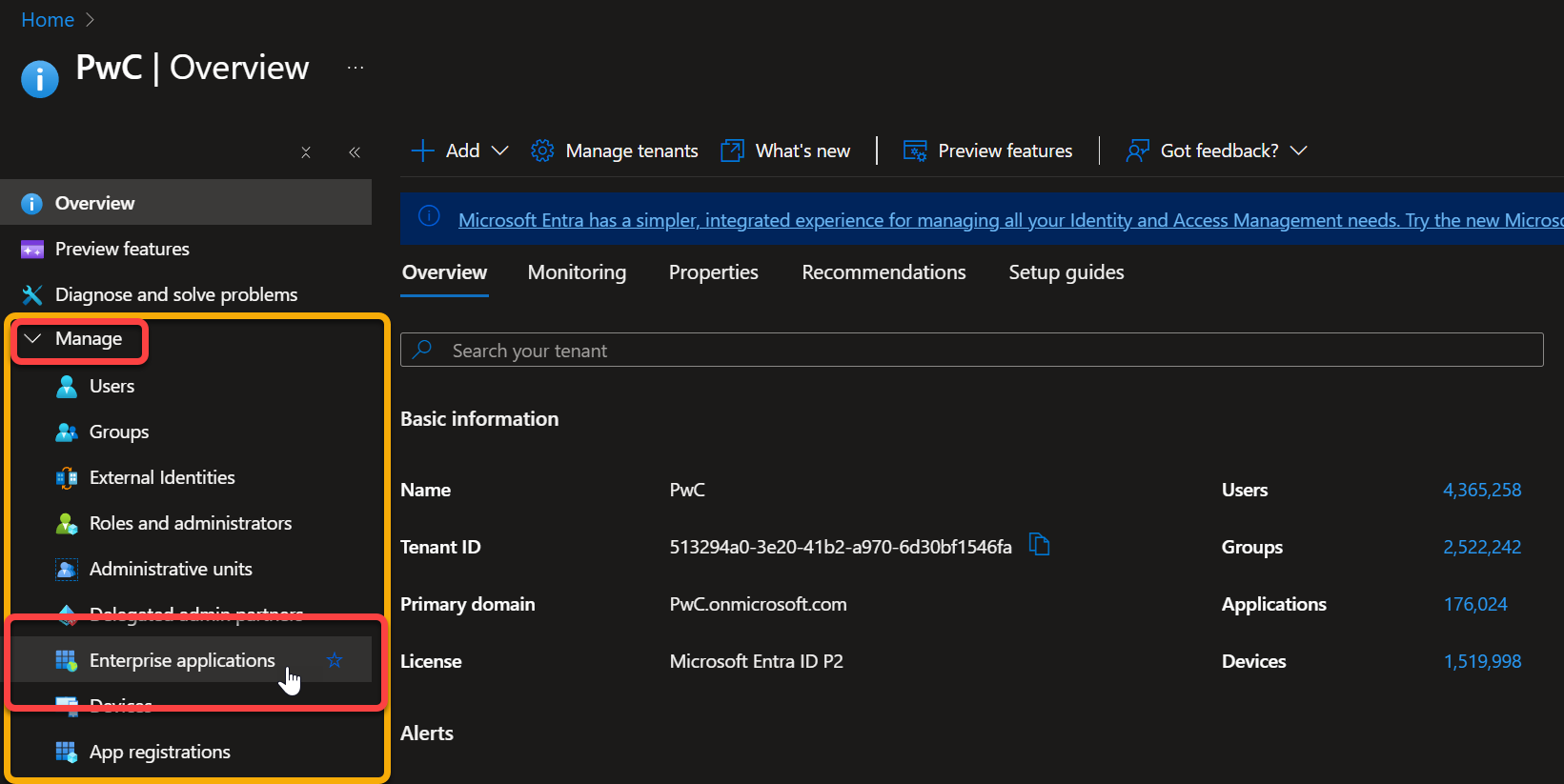
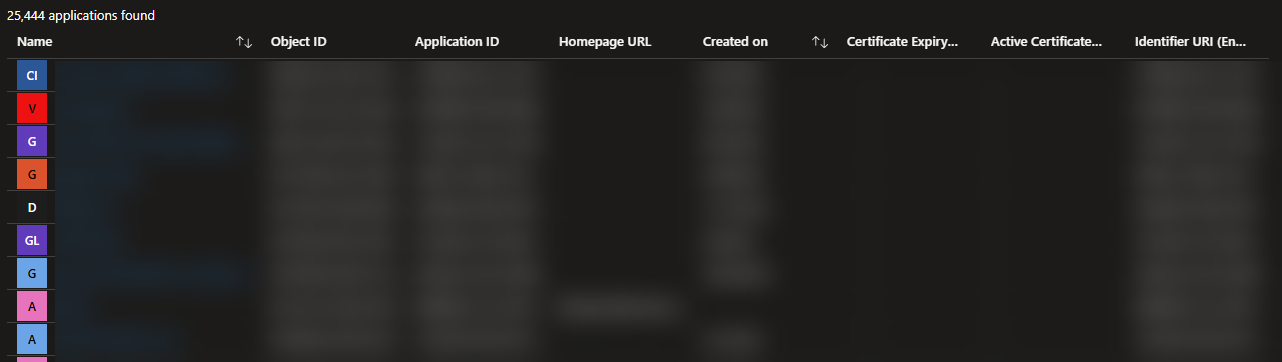
If you see a list of applications, your access is working.
3. Check App Registrations
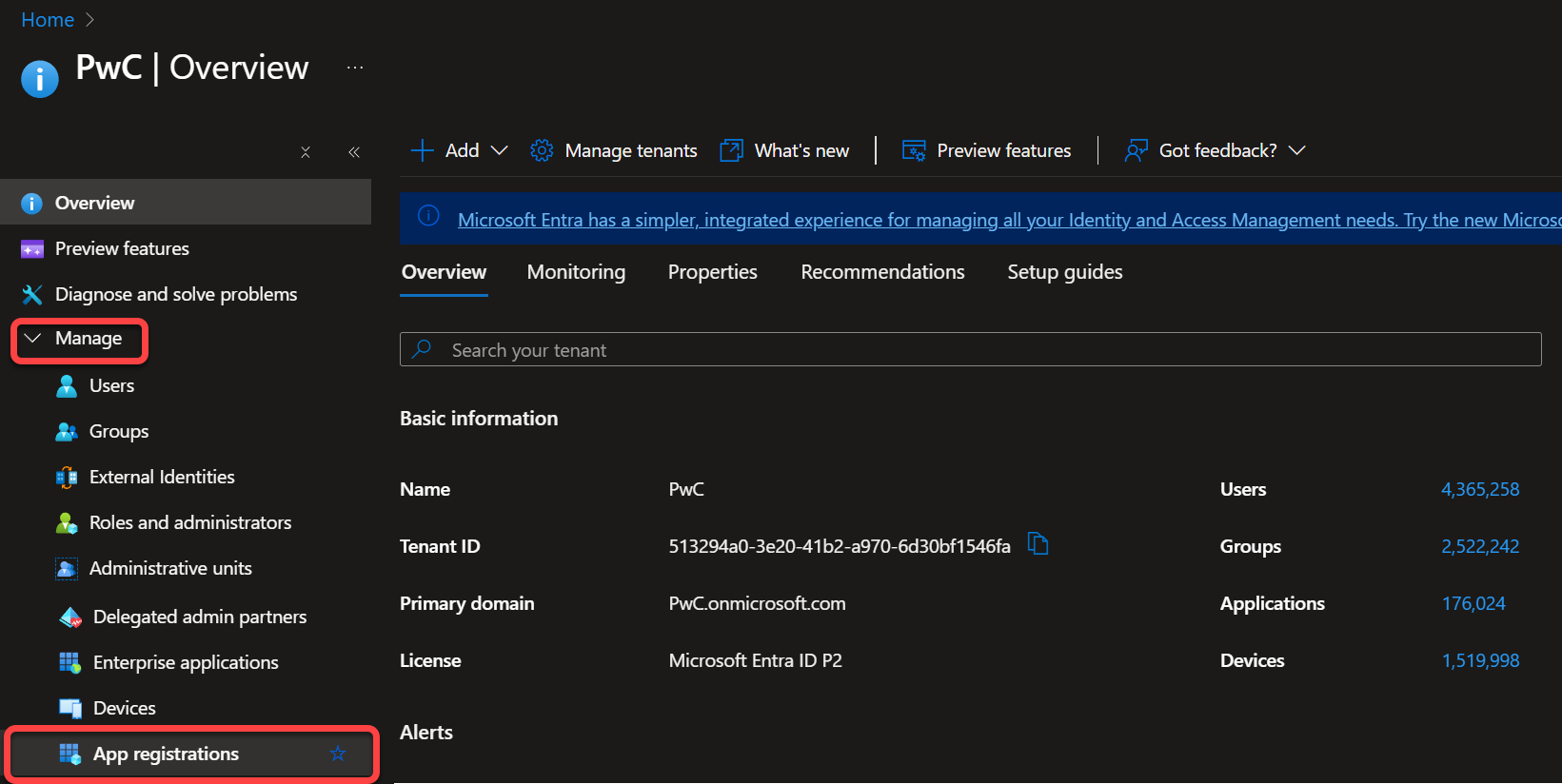
Go back a screen, then select click Manage ▶️ App Registrations from the left pane.
(Consider setting App Registrations as a favorite by clicking the ⭐ icon)
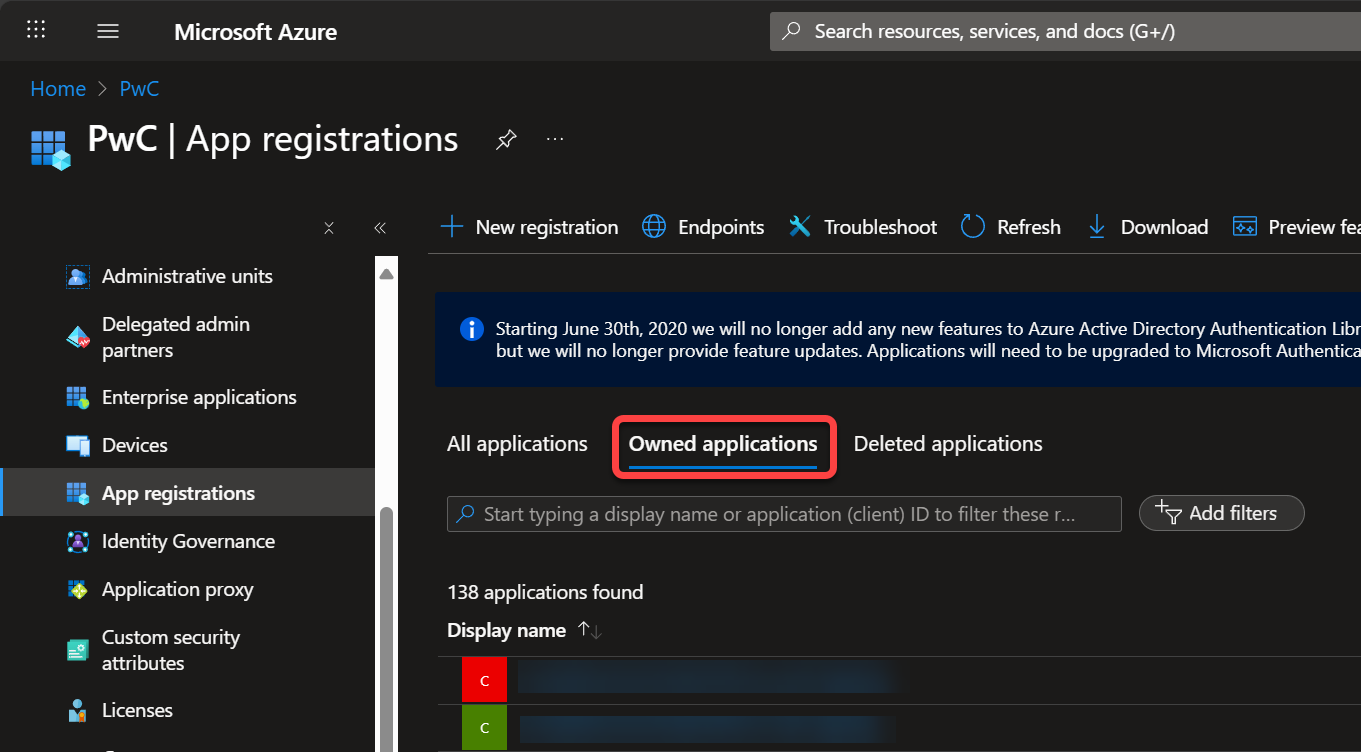
Below the Owned applications tab, make sure you can see your list of applications.
4. Verify app ownership
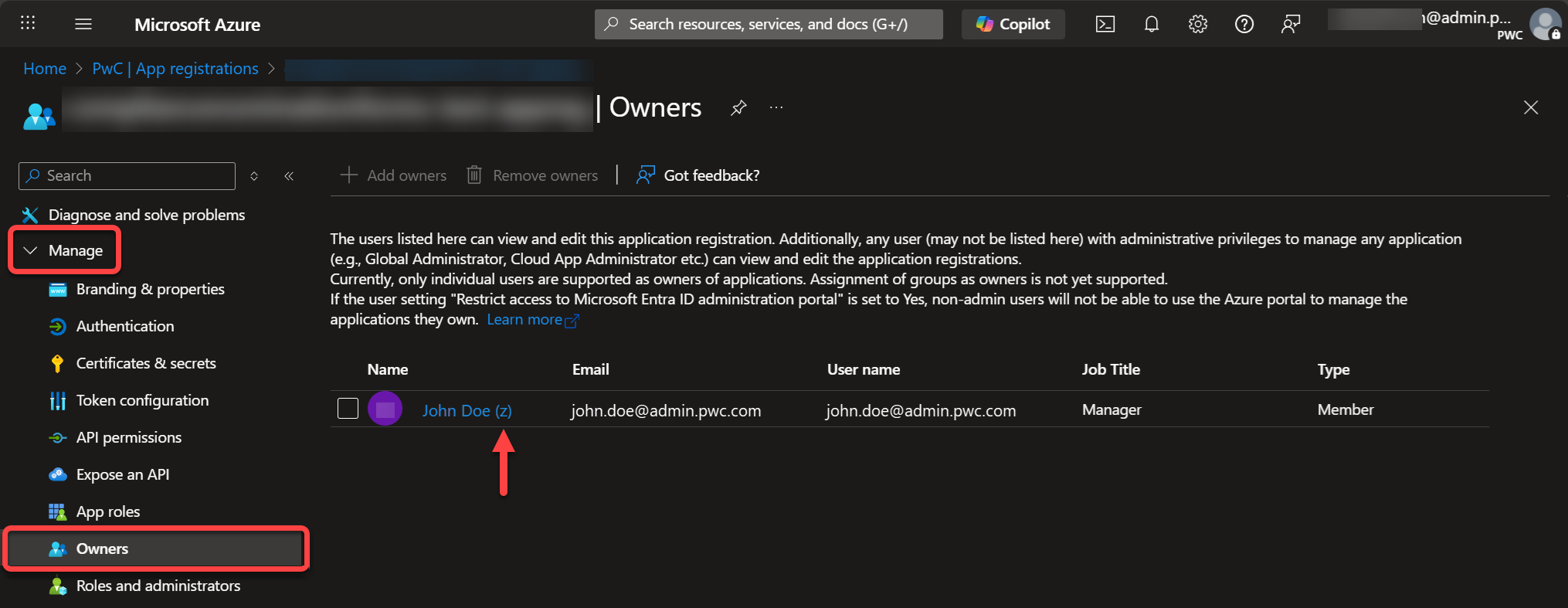
Select the specific app registration, expand Manage and click Owners to ensure your admin(z) account is listed.
5. Add Co-Owners (if necessary)
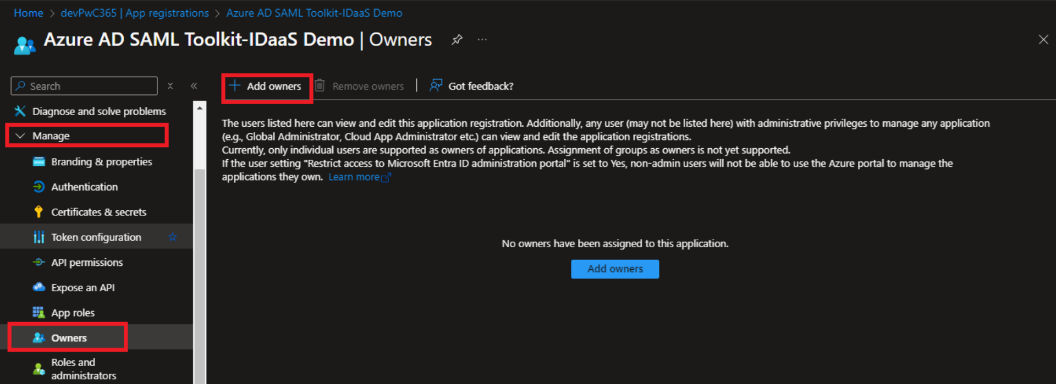
If your admin(z) account is listed and you want to add co-owners to the app, click Add owners. Please ensure that you are only adding admin(z) accounts because non-admin accounts or Group accounts will not be able to access the Entra portal.
6. Access enterprise app
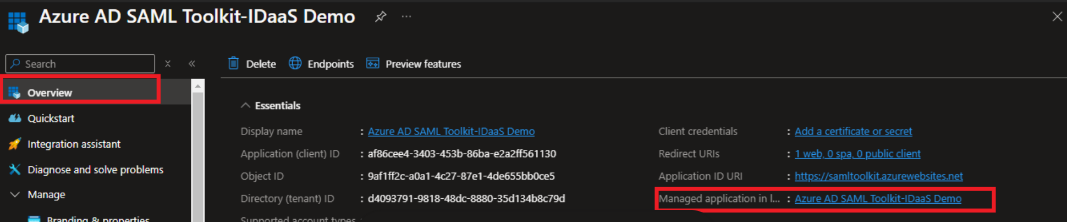
Click Overview. Then, on the right-side pane, click the enterprise app next to Managed application in the local directory.
7. Verify enterprise app owners
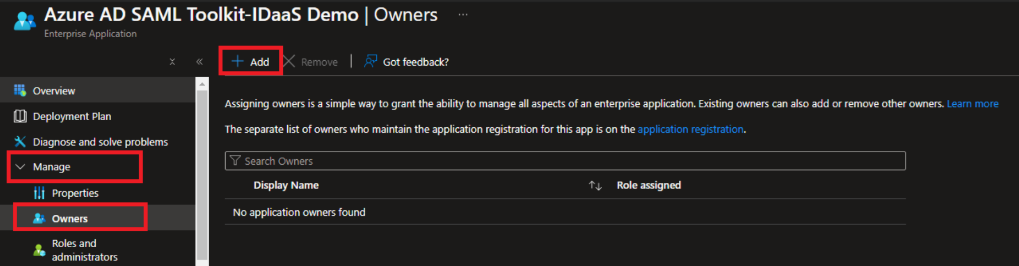
Expand Manage and click Owners and ensure your admin(z) account is listed.
To add co-owners to the app, click Add. Please ensure that you are only adding admin(z) accounts because non-admin accounts or Group accounts will not be able to access the Entra portal.
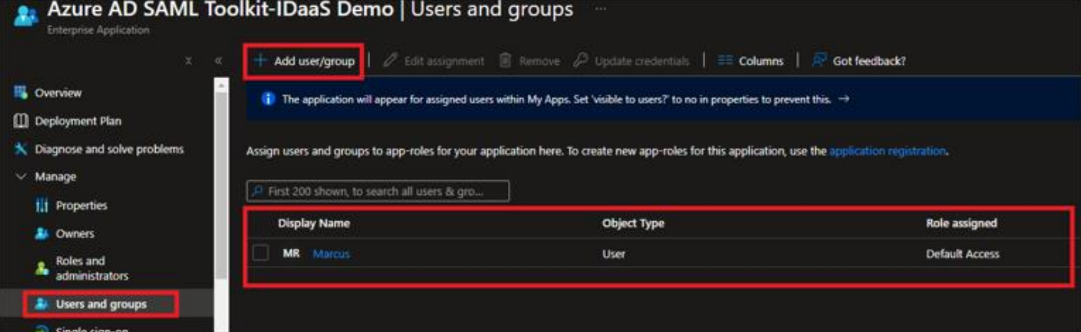
8. Review users and groups
Click Users and groups to ensure that all the users and groups that should have access to the app are listed here.
Raise a ticket
For stage and production tenants, please raise a Cloud Admin Account request via a ServiceNow (SNow) ticket using the Cloud Admin Account form.
Required fields
Please complete the following fields as advised below:
| Field | Value |
|---|---|
| Cloud Service | Select Azure – Managed Services |
| Approval Manager | Enter the email address of your reporting manager |
| Environment | Select Staging and production |
| Description | Enter Admin(z) account needed for app administration tasks |
| Business Justification | Enter Admin(z) account needed for app administration tasks |
Support contact
To ask questions or request help, please send an email to the Global Enterprise Access Management team: gbl_eam_application_system@pwc.com
Next Steps
After the SNow ticket has been resolved, please perform the steps listed below.
1. Set up Entrust MFA
Set up MFA on Entrust and Microsoft Authenticator. Please refer to the Entrust MFA setup guide and the Microsoft Authenticator setup guide.
2. Verify access
Return to the Tenant Admin Access section and complete steps 1 to 6 to confirm you have the access you need.
3. Provision users and groups
If you are able to access the MS Entra portal, verify if all users and groups that require app access are provisioned and available to be assigned to the app. If not, please go to the Enterprise app as directed in Step 6 of the App Ownership Verification section.
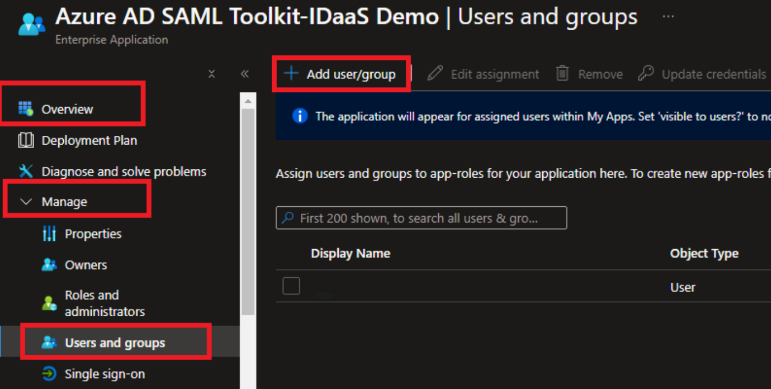
Next, click Overview, expand Manage, click on Users and groups and then Add user/group to add all users and/or groups that should have access to the application.
4. Configure unrestricted access (if needed)
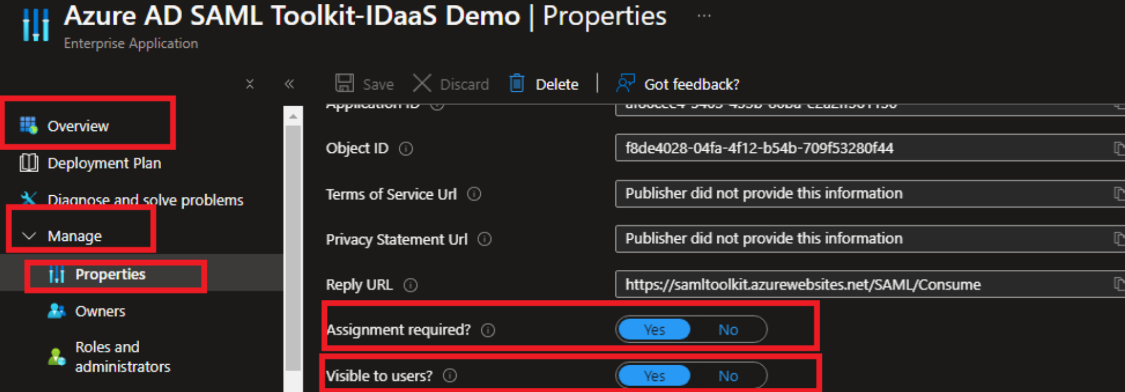
If your application requires unrestricted access for all users and groups, click Overview, expand Manage to click Properties, and scroll down to find the Assignment Required? and Visible to users? options.
Select Yes to make the app visible and accessible by all users and groups in the tenant.
- Users on the staging Entra tenant will be provisioned with the username suffix
@testenv.pwc.com. - Global users on the production tenant will be provisioned with the suffix
@pwc.com.