Multi-Factor Authentication (MFA)
Questions about Modern Authentication? Review this resource page for more information
Applications which migrate to Entra ID in FY26 without MFA enabled will not require any additional application specific configuration or code changes to enforce MFA in FY27.
This topic covers Multi-Factor Authentication (MFA) in Entra ID from two perspectives:
In this article: App team MFA requirements as part of thier migration activities - and important considerations for those who've already migrated.
📖 Learn More: See the Guiding Questions below
In this article: What your application's end users can expect to see when signing in via Entra ID and, depending on certain scenarios, what to do next.
📖 Learn More: Review the User Experience section
Guiding Questions
From an application team perspective, these brief questions will help you determine what's required (or not) when migrating to Entra ID, which in turn will dictate the end user experience.
Does your application require MFA?
- Yes
- No
Have you already configured MFA for your application in Entra ID?
- Yes
- No
🛫 App Team Migration Requirements: N/A (MFA already configured)
👤 End User Experience:
- Users from territories that have not completed their Modern Auth transformation may be asked to register an MFA Factor by Entra if they don't already have one.
🛫 App Team Migration Requirements: No need to explicitly enable MFA (will be handled by the Identity team at a later date)
👤 End User Experience:
- Post-migration, users will sign in via Entra ID as depicted in the User Experience section below
🛫 App Team Migration Requirements: None (which are MFA-specific)
👤 End User Experience:
- Post-migration, users will sign in via Entra ID as depicted in the User Experience section below
- Once their territory completes its Modern Auth transformation, users will be prompted to Enroll an MFA factor for logins going forward.
🎯 Bottom Line:
- Moving to Entra ID may change the look & feel of user's login page experience, but the migration alone won't inherently change the MFA requirements they're accustomed to during sign-in.
User Experience
Users who have moved to Modern Authentication are already using MFA for all logins, and thus will not see any change in authentication from their current sign-in experience.
This section depicts the user experiences and prompts users may encounter while trying to authenticate an application that has transitioned from PwC ID to Entra ID with Multi-Factor Authentication (MFA) enabled.
End users may have different experiences depending on whether they have installed and set up MFA on their mobile devices and/or tablets. If users have not set up MS Authenticator when attempting to log into an MFA-enabled application, they may be prompted to do so.
End users can also proactively set up MFA by referring to the Microsoft Authenticator Setup QRG.
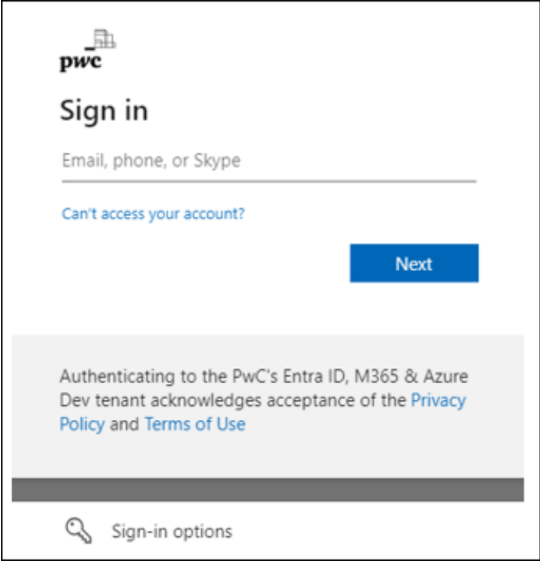
Microsoft Entra ID Login Page
Post-migration, your app will redirect users to a page that looks like this for authentication ⤵️
-
This 'Sign in' prompt will also appear for users accessing the app from an incognito / inPrivate browser.
-
Users will skip this page if they already have an active Entra ID session on their browser, in which case they should expect to be automatically signed into the application.
Here, users will enter their email address and click
The username / email should be entered in the following format:
John.Doe@pwc.com
Modern Auth Users
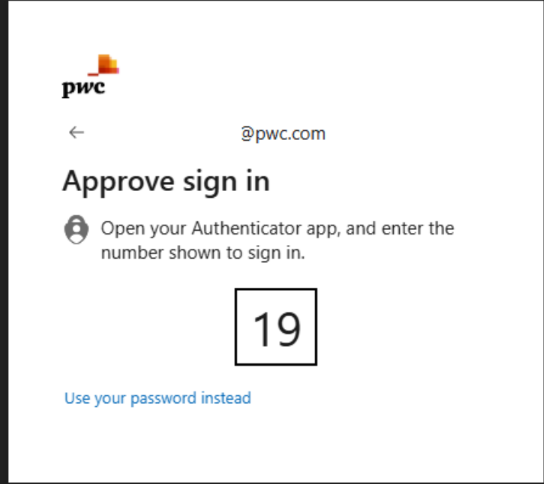
Immediately after entering their email address on the above Login Page, users who have completed their Modern Auth transformation will then be prompted to approve the sign-in as shown here ➡️
From here, users will open the MS Authenticator application on their mobile device and enter the number shown to complete their sign in.
first-time Modern Auth sign-ins will prompt to enroll an MFA factor
Keep Me Signed In (KMSI) Prompt
Users will see this "Keep Me Signed In" (KMSI) prompt ➡️
- ☑️ Each day when logging into the app for the first time
- ☑️ Any time they access the app using an incognito browser
Selecting will cache a persistent Single Sign On (SSO) cookie which reduces number of login prompts the user should expect to see.
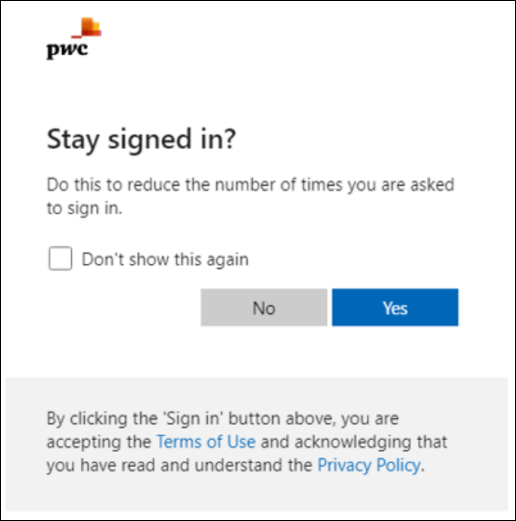
Regardless of their / selection, users will then return to the application's configured redirectURL / homepage, and authentication is considered complete.
MFA Factor Enrollment
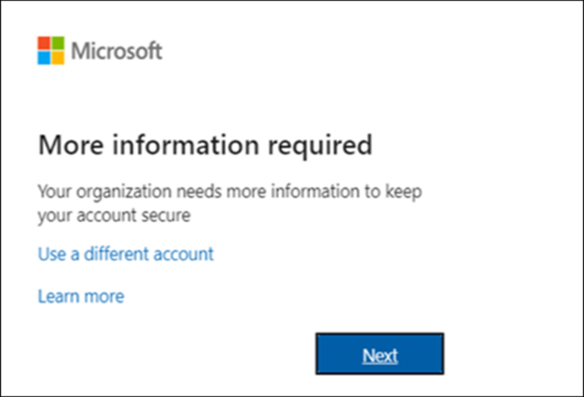
If your application has MFA enabled and users have either:
- Not installed the Microsoft Authenticator app on their mobile device or
- Installed the app but not registered their PwC Profile:
They will be prompted with this pop-up when attempting to log into your application ➡️
Here, users should click
From this screen ➡️
-
If users have already installed the MS Authenticator app on their mobile device, click
-
If not, click Download now, configure the app and, when finished, click
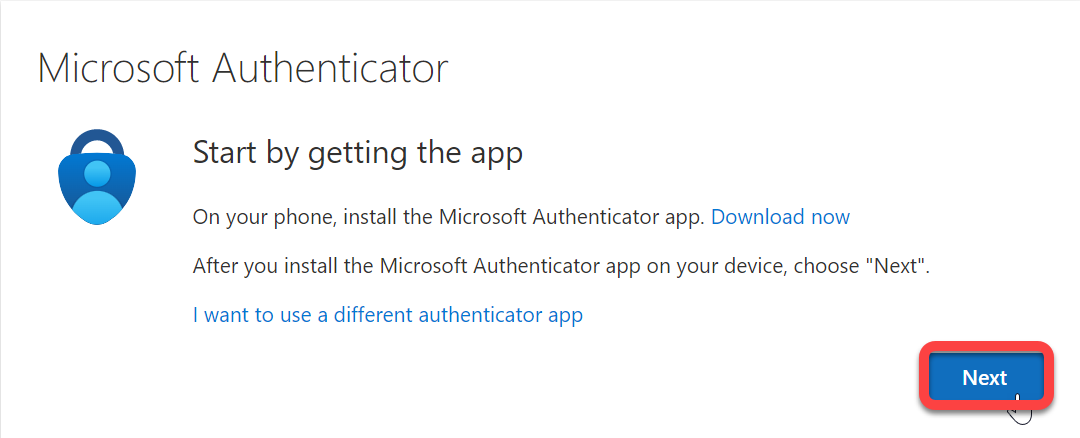
On their mobile device, if prompted to allow notifications, please allow.
Next, the user will need to add an account.
They should see the
+sign option, and should then select Work or School account.
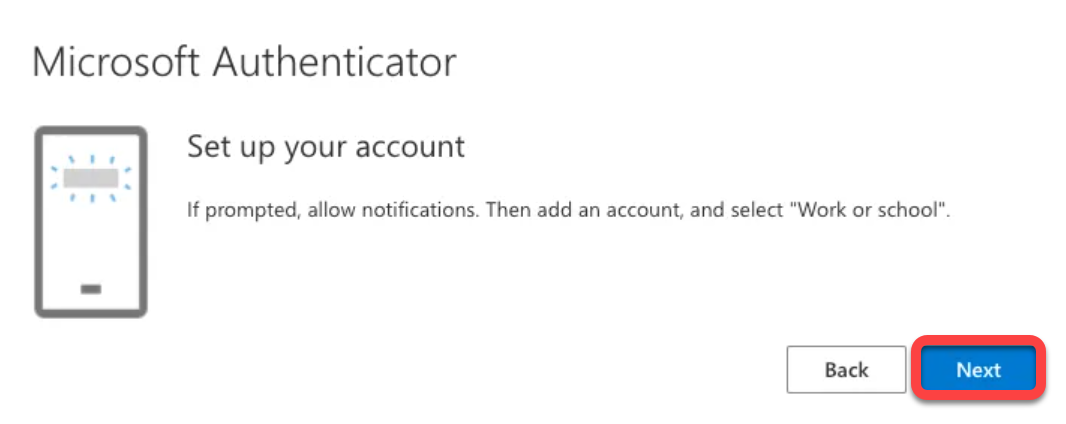
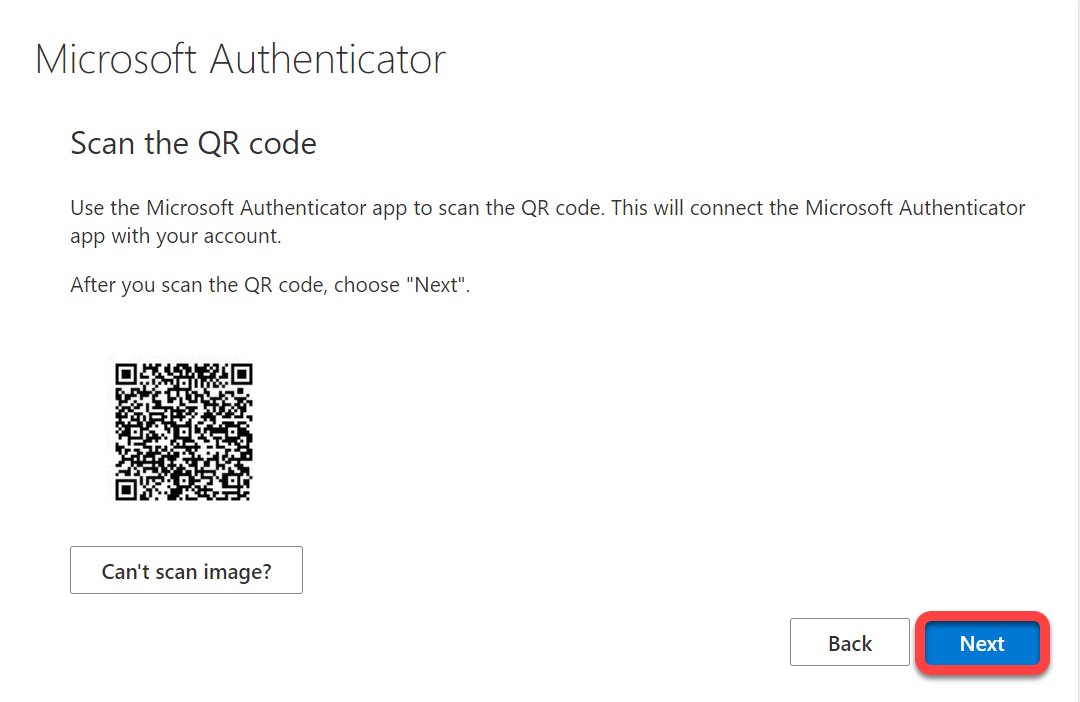
On the next dialog box, select Scan a QR code.
After scanning the QR code via the Microsoft Authenticator application, the user should click Next on their PC.
After scanning the QR code, users should then see this screen on their PC along with a number:
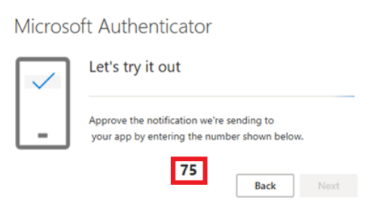
They will be asked to enter the code on their mobile app. After entering the code, click
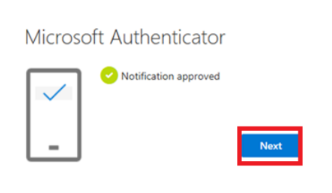
This page indicates their mobile app has been successfully registered to the PwC tenant. They may now select
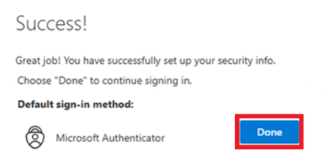
Once the user has completed installing MS Authenticator, they will be prompted for MFA approval during sign-in, as depicted in the Modern Auth User Experience
If end users experience any MS Authenticator related issues, instruct them to reach out to their local service desks.